
Losing Outlook contacts can be frustrating, but getting them back is easy if you have a backup in a PST file. In this guide, we will show you simple steps to quickly restore Outlook contacts from PST files. Let’s start….
MS Outlook is a popular email management software that millions of users are using worldwide. The primary use of MS Outlook is to manage email accounts and send/receive emails.
Apart from this, it allows users to perform many more operations and contact management is also one of them.
Outlook enables users to create and store their important contacts with information such as name, phone number, email address, home address, profile picture, etc. Outlook keeps these contacts inside the Outlook data file “PST”.
Also Read: – How to Export/Recover Emails from Corrupt PST File?
What is Outlook PST?
PST (Personal Storage Table) is a file that MS Outlook uses to store data associated with an Outlook profile. This file helps in keeping a complete mailbox with every Outlook item- emails, contacts, calendar, tasks, notes, and other elements.
The Outlook PST file also acts as a backup file and helps users create local copies of their important data items. In cases, where users face data loss or other types of problems, this file enables them to restore their lost items.
Why to Restore Contacts from PST file: –
Restoring contacts from a PST file can be necessary for several reasons: –
- Accidental Deletion: – If a users has accidently removed any important contact items from Outlook profile.
- Outlook Profile corruption: – When corruption appears in Outlook user’s faces problem in access their important contacts, and requires to restore them.
- Switching Outlook Profile: – Users needs to restore contacts from PST file when they reconfigure or add a new email profile in Outlook.
Method 1: – Restore Contacts from PST file in Outlook
Follow these steps to restore contacts from a PST file to Outlook:
- Launch MS Outlook application and open your Outlook profile.
- Click on the File tab, select Open & Export, and click on Import/Export.
- Choose the option Import from another program and file, in the Import and export Wizard window and click on Next.
- From the Import a File screen, select Outlook Data File (*.pst) and click on Next.
- Hit on Browse and insert your PST file, and choose an option for handling duplicates and press Next button.
- Select Contacts from the list of folders of your email account and hit the Finish button.
Start importing contacts from PST file in Outlook profile and after process completion check the imported contacts in Outlook.
Limitations of Manual Method
- This method requires Microsoft Outlook application.
- Users need an active Outlook profile to restore contacts.
- This method will not work if PST file in any corruption state.
Method 2: – Smart Method to Restore Outlook Contacts from PST
To restore contacts from a corrupt PST file, most of the times the traditional method will not work. Therefore, the best solution would be to use a tool like Regzion PST Recovery Software. This program will allow you to easily recover all contact items from a PST file in a very simple manner.
It allows restore contacts with every relevant attribute- name, email address, phone number, etc. This tool recovers contacts from all types of inaccessible PST file, including corrupted, encrypted, oversized, etc. It recovers contacts from PST file and allows saving contacts to file types – new PST, CSV, vCard, MSG, and more.
Also, is able to restore contacts from multiple PST file at once. Besides, it also provides a variety of smart functions to easily restore Outlook contacts from PST.
How to use Regzion Outlook PST Contact Recovery Software?
- Download and run this windows program “Regzion PST Recovery Software”.
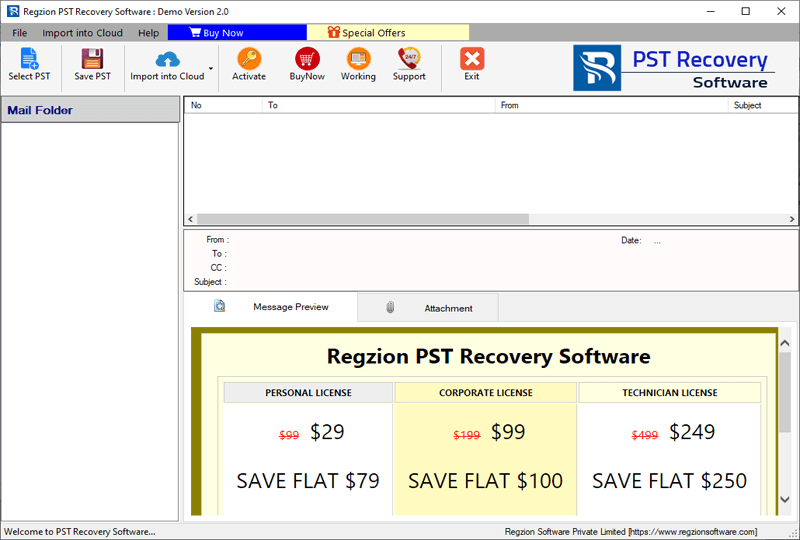
- Click on Select PST and select file adding mode – Single PST File Conversion or Bulk PST File Conversion.
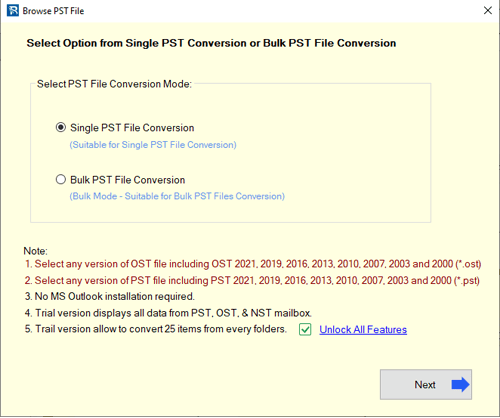
- Choose conversion method, add PST file and click on Start Scanning.
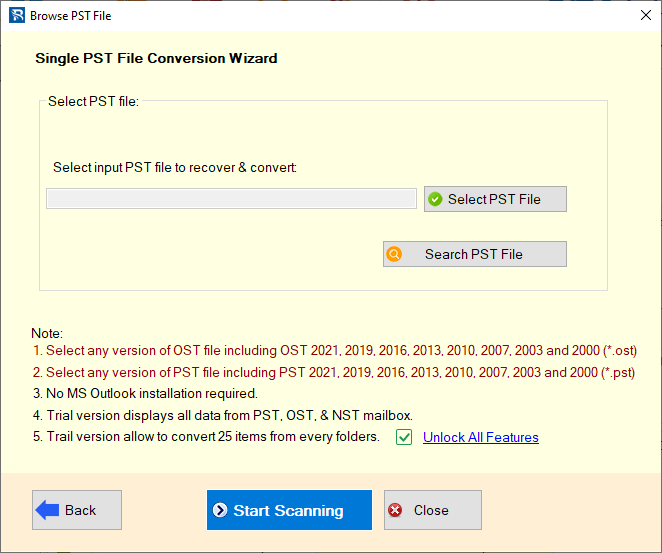
- Scan PST file, resolve corruption errors and load all Outlook data from it.
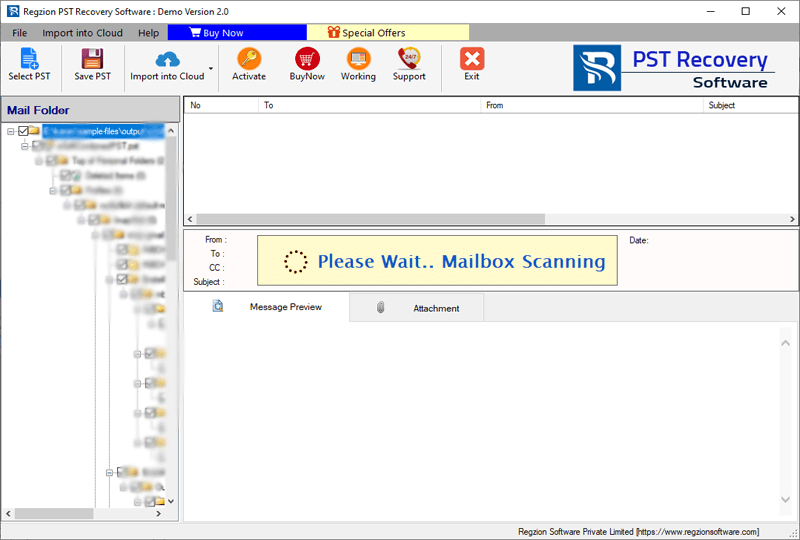
- Get preview of all mailbox folders from PST file and view Outlook contacts.
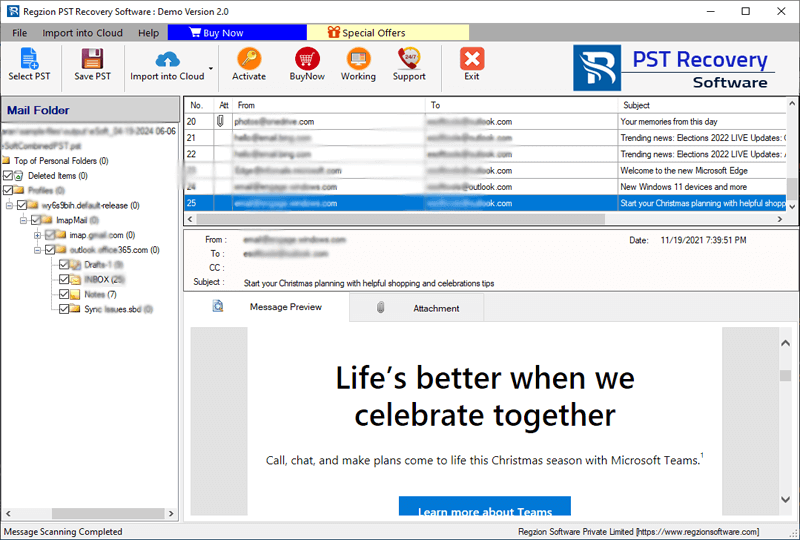
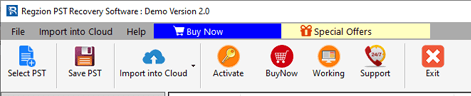
- Choose folders containing contacts, and click on Save PST button.
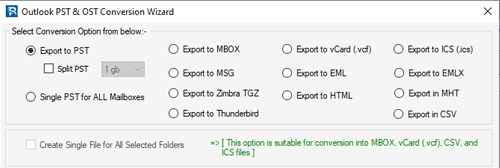
- Select a conversion format for saving PST contacts- MSG, vCard, CSV or PST.
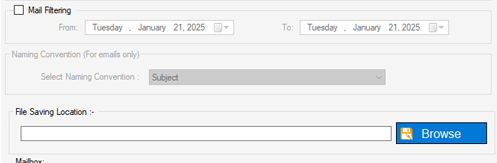
- Apply other required settings and click on Browse to choose a saving location.
- Lastly, press Convert button and start the process to extract/restore contacts from PST.
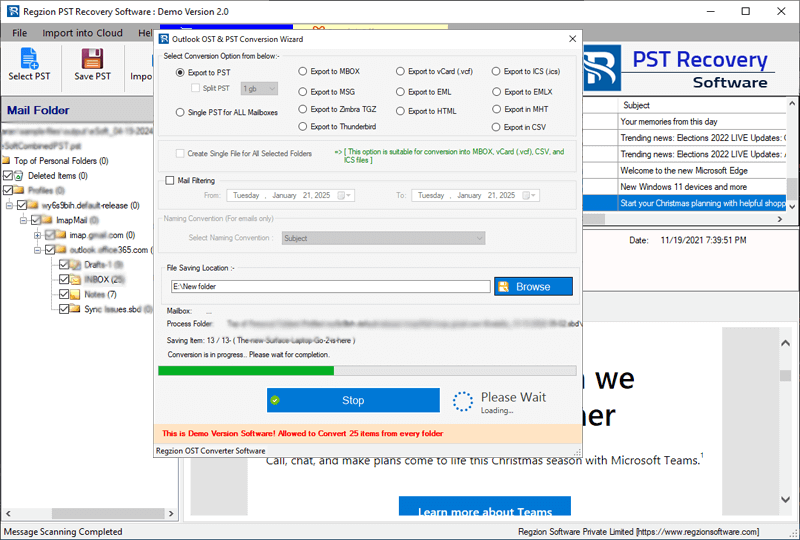
Complete the PST file conversion (contacts restore process) and get new files with the contacts of your Outlook PST file. Easily use them with your supported applications.
Conclusion
Restoring Outlook contacts from PST file is simple if you have a backup. The manual method works well for healthy PST files, while the tool “Regzion PST Recovery Software” is ideal for contact recovery from corrupt or inaccessible PST files. Both methods will help you recover your contacts easily. You can try both of them by following the step-by-step guide mentioned above.


No Comments yet!