
Migrating Outlook PST files to a Gmail account is a task that most users want to do. The reasons could be to change email providers, organize email profile data, or access your emails from the web. Whatever the reason, this step-by-step guide will walk you through the entire process to migrate/import PST to Gmail account. Let’s Start!
Microsoft Outlook is a popular email client that millions of people are using around the world. It is a part of the Microsoft Office suite and is especially common in corporate environments.
Users using Outlook desktop to manage email, calendar, contacts, tasks, and other functions. It is also very popular because of its smart features and one of them is offline data access.
To allow users to read data offline, Outlook stores all data locally in a file known as PST file. This file helps users to organize Outlook data and transfer the data when it requires.
Also Read: – How to Import Outlook OST to Gmail/G-Suite?
Google’s Gmail – Overview
Gmail is Google’s email service known for its speed, simplicity, and great features. It’s cloud-based program, which means your emails are stored online, accessible from anywhere with an internet connection.
Gmail has now become one of the most popular email platforms globally. Offering both free and premium options for individuals and businesses.
Why Migrate Outlook PST to Gmail Account?
There are several reasons why someone might want to transfer their Outlook data from PST file to Gmail: –
- Anywhere Access: – Since Gmail is cloud mail service, by migrating emails from Outlook, you get access to your emails from different devices and locations.
- Outlook Data External Backup: -Migrating a PST file to Gmail allows users to safely store their Outlook profile data on Google’s secure servers. This assist in creating data backup and reduces the risk of data loss.
- Switching Email Program: – If you are moving from Microsoft Outlook to Gmail, you will need to transfer your data from the PST file. This helps keep everything in one place (even your old profile data).
Method 1: – Import PST File to Gmail through MS Outlook
This method uses MS Outlook as an intermediary between your PST file and Gmail. Follow the steps below: –
Step 1: – Add/Configure Gmail Account in MS Outlook
- Open MS Outlook and go to File >> Account Settings > > Account Settings.
- Click New.. to add a new email account.
- Select Email Account, enter your Gmail email address and password.
- Click Next and let Outlook configure your account.
After successfully adding Gmail email account, apply the next steps for import PST files.
Step 2: – Import PST file and Move Mailbox to Gmail
- After Gmail account login, click on File >> Open & Export >> Import/Export.
- Select Import from another program or file and click Next button.
- Select Outlook Data File (.pst) and again hit on Next.
- Browse your PST file location and select it.
- Choose whether to allow duplicates or not, then press Next button.
- Select the Gmail account and a folder where you want to import PST file’s data items.
- Lastly, click on Finish button and start transferring PST files data to Gmail profile.
Limitation of the Method: –
- MS Outlook Need: – This method requires MS Outlook application on your computer. Without Outlook you cannot complete a single step.
- Not works with Corrupt PST: – This process will not work if there is a corruption issue in PST file.
- Possibility of Human made errors: -Manual errors can occur, especially if the migration is done in a hurry.
Method 2: – PST to Gmail Direct Migration via Automated Software
For swift transfer of Outlook mailbox to Gmail account with minimum efforts, you can use Regzian PST Recovery software. Using this program, you can migrate PST files to Gmail and Google Workspace directly.
Complete the migration without the need for MS Outlook application or any additional application. Also, supports all types of PST files – corrupt, inaccessible, encrypt and healthy to migrate data. Provides the facility to migrate multiple PST files at one time for quick migration.
Steps for Importing PST Files to Gmail profile via Regzion Software
- Download and Install Regzion PST Converter Software on a machine having windows O/S.
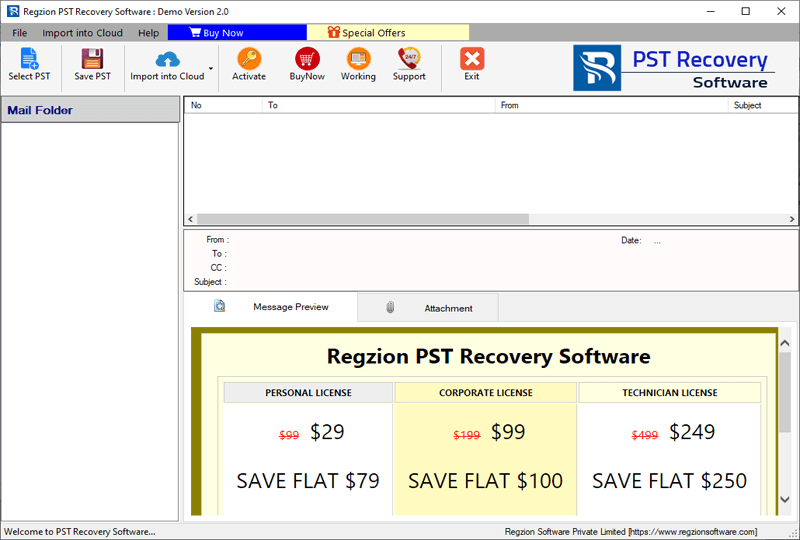
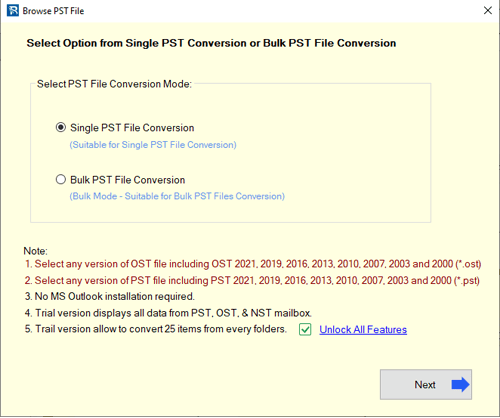
- Click on Select PST button and choose a single or bulk OST file conversion mode.
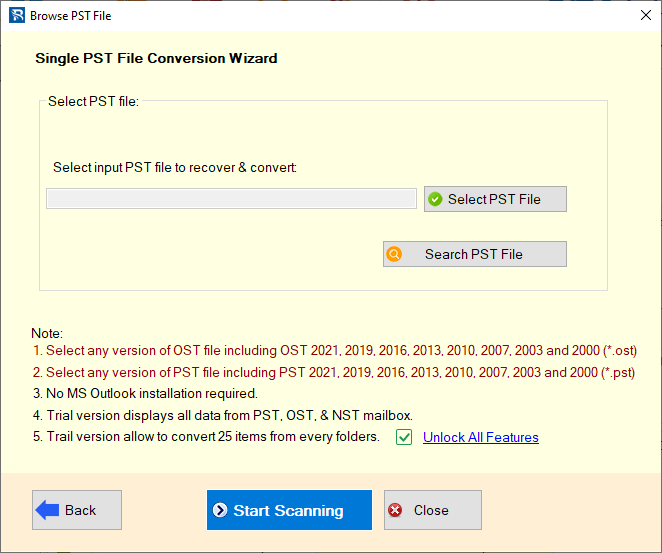
- Browse the location of PST file, insert PST into the software and press Start Scanning button.
- Load Outlook mailbox folders and items from the PST file you have added.
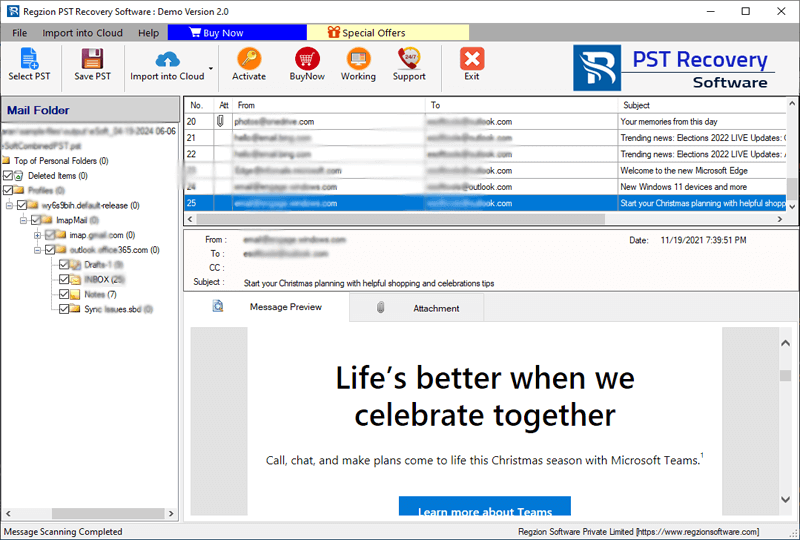
- From PST file, choose the folders you want to export to Gmail account.
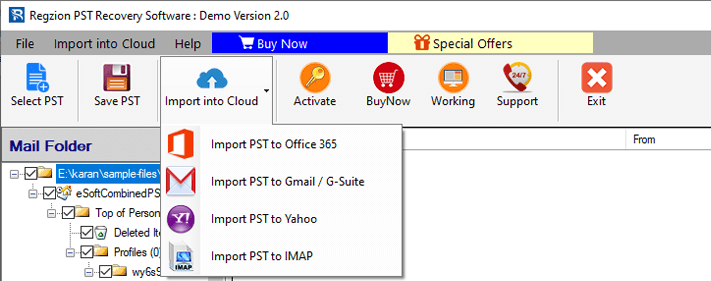
- Click on Import to Cloud >> Import PST to Gmail / G-Suite button from menu bar.
- Add Gmail account’s email address and App Password and click on Authenticate Login.
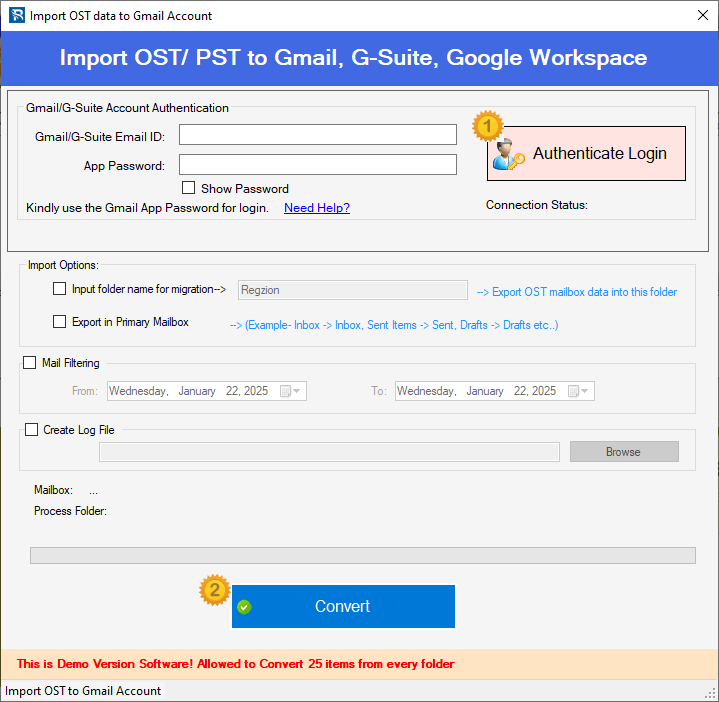
- After sign in process, apply the Import options, mail filtering and other settings.
- Finally, hit on Convert and easily begin the Outlook PST File to Gmail Migration.
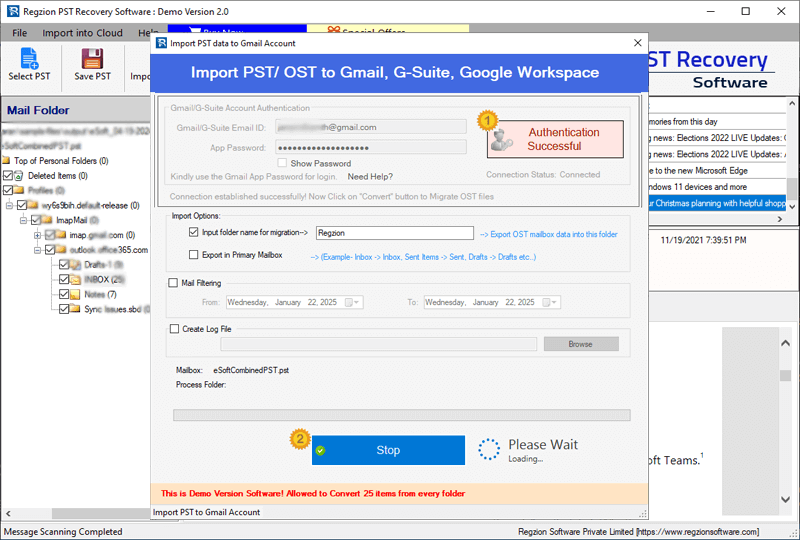
In a very short time the software will complete the migration and save your Outlook mailbox folders to Gmail account.
Conclusion
Migrating your Outlook PST files to Gmail gives you easy access and safe backup of your important Outlook profile data. You can either use Outlook or use a tool like Regzion PST Converter for a fast PST file transfer. Just follow the above guides shown below to use the methods. Both methods will help you complete the migration task and save your Outlook profile data to Gmail. Choose the method that best suits your needs.


No Comments yet!