
If you use Outlook to manage email accounts, corruption in PST file can be a big problem for you. Fortunately, there are several ways to recover and repair corrupt Outlook PST file. In this guide, we will tell you about the effective ways to do this job smoothly. So, let’s check them out.
PST file (Personal Storage Table) is an important data file of Microsoft Outlook. It enables users to store their email profile data locally. Supports storing Outlook profile emails, contacts, calendar events, tasks, and other user’s personal data.
It is typically located on the user’s computer drive and allows to efficiently access and manage user data offline in Outlook.
The PST file is very important for working with MS Outlook, especially when an Outlook profile is associated with it.
If any corruption issue enters in PST file, it can cause a variety of problems, such as- losing emails, inability to access certain folders or preventing Outlook from launching.
Also Read: – How to Recover/Repair Corrupt Outlook OST File?
Common causes of PST file corruption: –
- PST File Oversizing: – PST files with a size greater than 2GB (in older versions of Outlook) or 50GB (in newer versions) are more likely to become corrupt.
- Improper Outlook Shutdown: – Corruption can enter in PST file due to a sudden system shutdown, Outlook crash, or other improper MS Outook app termination.
- Virus or Malware Infection: – Malicious software or viruses in the user’s system can also affect the PST file, causing corruption in it as well.
- Software Conflicts: – Due to conflict with Outlook’s third-party add-ins, updates or other software available in the user’s system, can corrupt PST file.
How to Recover/Repair a Corrupt Outlook PST File?
If you are facing issues with a corrupt PST file, don’t panic! Just use the methods shown below to repair the file easily: –
Method 1: Fix PST file using Inbox Repair Tool (ScanPST.exe)
When your PST file gets corrupt, the first step to the rescue is Microsoft’s built-in repair tool, ScanPST.exe. This utility scans and repairs corruption issues in the PST file. Follow the given steps to do it easily.
- Search ScanPST.exe tool from your computer’s local drive : –
- Location for Outlook 2019/2016/2013/2010:
C:\Program Files (x86)\Microsoft Office\root\Office (Outlook version number) \
- Location for Outlook 2007 and older:
C:\Program Files\Microsoft Office\Office (Outlook version number)
- Location for Outlook 2019/2016/2013/2010:
- Find ScanPST.exe from the location and double click on the file and launch the tool.
- In the ScanPST tool screen, click on Browse and add your corrupt PST file.
- After loading the PST file, click on Start to scan PST file for checking corruption problems.
- Click on Repair button and start repairing your corrupt Outlook PST file.
After process completion, open MS Outlook and access this PST file.
Method 2: – Create a New Profile and Import Data from PST
Sometimes, creating a new Outlook profile and importing the corrupt PST into it fixes the corruption issue. To do this just follow these steps: –
Step 1: – Create a New Outlook Profile
- Press the Start button and go to Control Panel > > Mail >> Show Profiles.
- Click on Add.., provide a profile name and click on OK.
- Configure the new profile and add your email account in MS Outlook.
Step 2: – Import data from Outlook PST file
- Launch MS Outlook application and open the email profile that you have configured.
- Click on File >> Open & Export >> Import/Export.
- Select Import from another program or file, then select option Outlook Data File (.pst).
- Browse PST file, and in next steps, apply other required settings.
- Lastly, click on Finish and import data from PST file to Outlook profile.
Method 3: – Automated Program to Repair & Recover Corrupt PST file
If the ScanPST tool or any other traditional method is not able to fix your corrupt PST file, then you should use Regzion PST Recovery software. This software is available specifically to efficiently solve all types of problems with Outlook PST files.
It will repair and recover Outlook PST files no matter what the reason is for them becoming corrupt. Provides advanced features and easily recover/exports Outlook mailbox from corrupt PST to new healthy PST files.
How to use Regzion Outlook PST Recovery Software?
- Download the PST Recovery tool in your computer having Windows O/s.
- Install the software, and after installation, open it.
- From the software’s first screen, click on Select PST button.
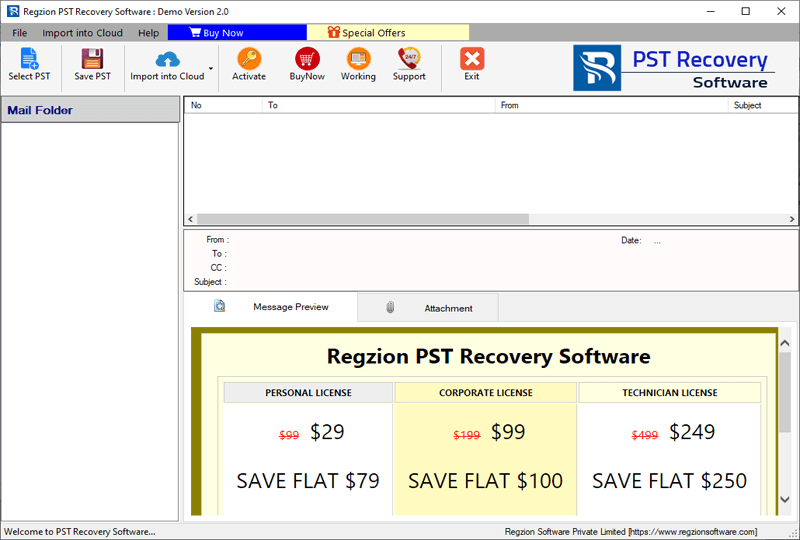
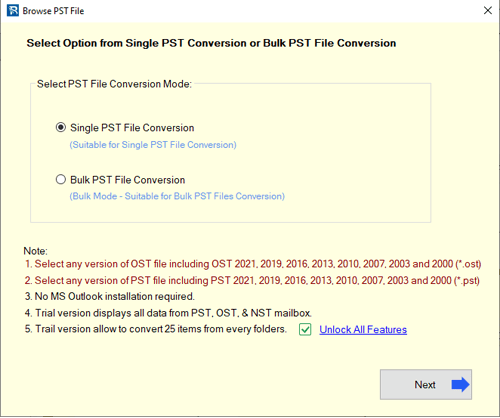
- Choose a PST file adding more – Single PST File Conversion or Bulk PST File Conversion.
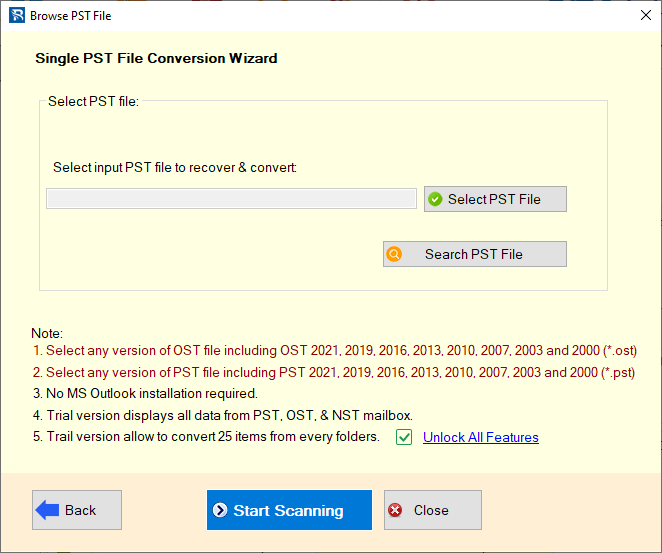
- Import the PST files which chosen file adding mode and press Start Scanning button.
- The software will begin PST file scanning for errors and corruption.
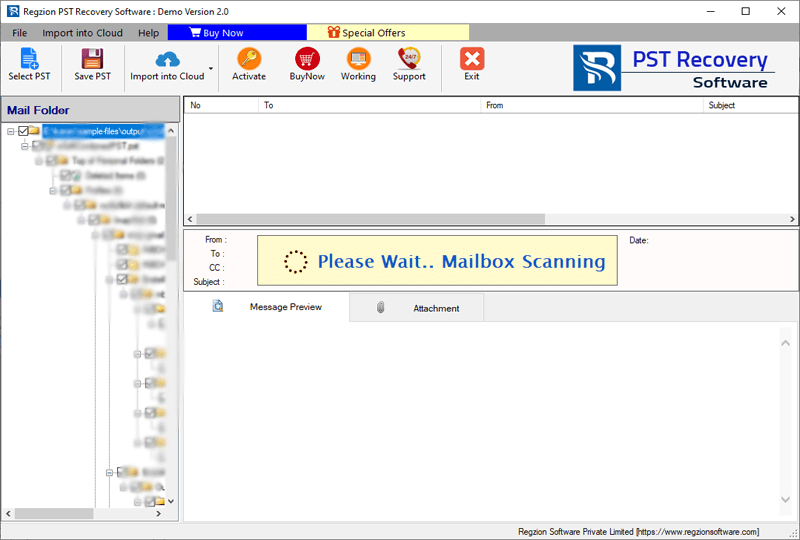
- After completion of scanning, the software will open PST file and provide preview of all Outlook mailbox items.
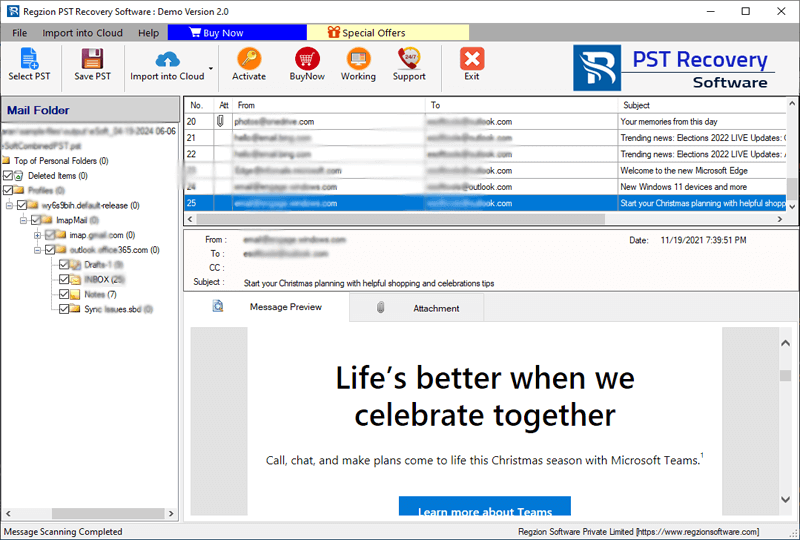
- Choose entire or specific folders that you want to recover from PST file.
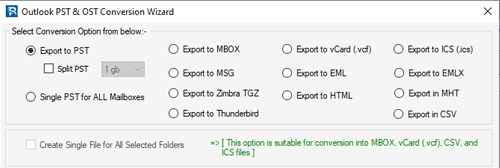
- Click on Save PST button and select the Export to PST from conversion options.
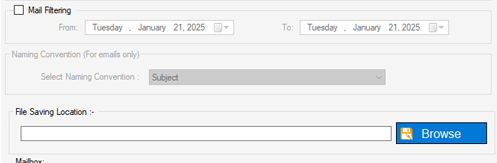
- Use other options and settings – saving location, mail filtering, etc.
- Lastly, click on Convert and get your new PST file with data of old/corrupt PST file’s data.
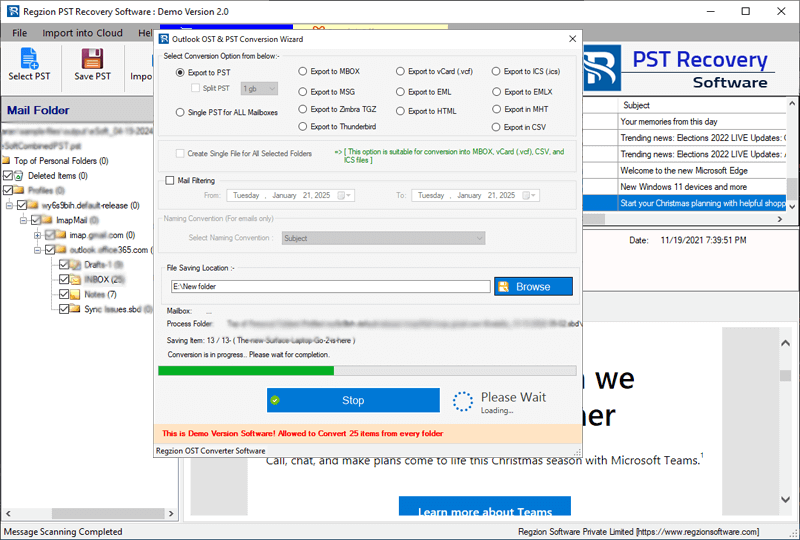
After the completion of the repair process, open Outlook and import new PST file in Outlook profile and access data without facing corruption problem.
Conclusion
Corruption in PST files can be a big problem for Outlook users. It can lead to the loss of important emails, calendar events, and other crucial data. Therefore, it becomes necessary to fix this problem. There are several ways to effectively recover and repair a corrupt PST file that you can try. Start with the built-in inbox repair tool (ScanPST.exe). If it doesn’t work, you can try creating a new Outlook profile.
If the manual method doesn’t fix your problem, you should take the help of Regzion PST Recovery. It will surely give you the best results and repair the PST file quickly.


No Comments yet!