
Sometimes Outlook users come across a situation where they need to export Outlook contacts from PST to vCard files. In this case users try different methods but they don’t get success. This happens due to not using the right technique. So, through this article we are going to provide the best solution to convert PST to vCard with Outlook contacts. Let’s start.
MS Outlook is a versatile software that allows you to perform many other tasks besides emailing. One of the additional functions of Outlook is the ability to manage contacts.
Users store their address books with their various important contacts inside Outlook. Managing contacts in Outlook provides an efficient way to keep track of personal and business relationships.
User can save a contact with the relevant details such as- phone numbers, email addresses, physical addresses, etc. The copies of these contacts outlook by defaults allows to preserve in data file PST.
However, there might be instances when users need to transfer their Outlook contacts to other platforms, in that kind of case users need to convert PST to vCard format.
Also Read: – How to Convert OST to vCard/VCF with Outlook Contacts?
Why Export/Convert PST Contacts to vCard?
There are many reasons why users prefer to export Outlook contacts from PST files to vCard/VCF files:
- Universally Compatible Format: – vCard file format is supported on a variety of platforms, while PST only works in Outlook.
- Contact Backup: – Some users prefer to save their contacts separately from their Outlook profile and create external backups in vCard files.
- Sharing Contacts with ease: – vCard files are also an easy way to share contact information since they are lightweight and support a variety of platforms.
Method 1: – Save Outlook Contacts to vCard files via MS Outlook
- Launch MS Outlook application in your computer.
- Select and open Outlook profile (PST file) for extracting contacts.
- Click on the Contact icon from the bottom ride side of your screen.
- Select the contact and click on View Source Outlook (contacts).
- Press the File button from top menu bar and then press Save As button.
- Provide a file name, select a location for saving, and choose a save as type: vCard Files (.vcf).
- Lastly, click on Save and preserve the Outlook contact as vCard file.
Apply these steps one by one to all the contacts in Outlook that you want to extract as vCard files.
Limitation of MS Outlook
- Supports converting only one Outlook contact to vCard at a time.
- Requires Outlook email client and also PST files should not be in corruption state.
- There is also a possibility of human errors in this process.
Method 2: – Smart Way to Bulk Convert Outlook PST to vCard
Here is another smart way to convert PST to vCard which we know as Regzion PST Recovery software. If you are tired of extracting contacts from Outlook to vCard one by one then this software is the best solution for you. It makes it possible to extract all contacts at once.
Comes with the feature to convert multiple PST files along with contact items while retaining all relevant properties. Save PST contacts to vCard/VCF in 2 different modes. You can save each contact as separate vCard file as well as save all contacts in a single file.
Supports every type of PST files including corrupt/ encrypt/ large and healthy. Also, completes PST to vCard conversion without the need for MS Outlook.
How to Export Outlook Contacts from PST to vCard Files?
Easily convert PST to vCard format with Outlook contacts by applying the below steps: –
- Download Regzion PST Recovery/Converter software and install it on Windows PC.
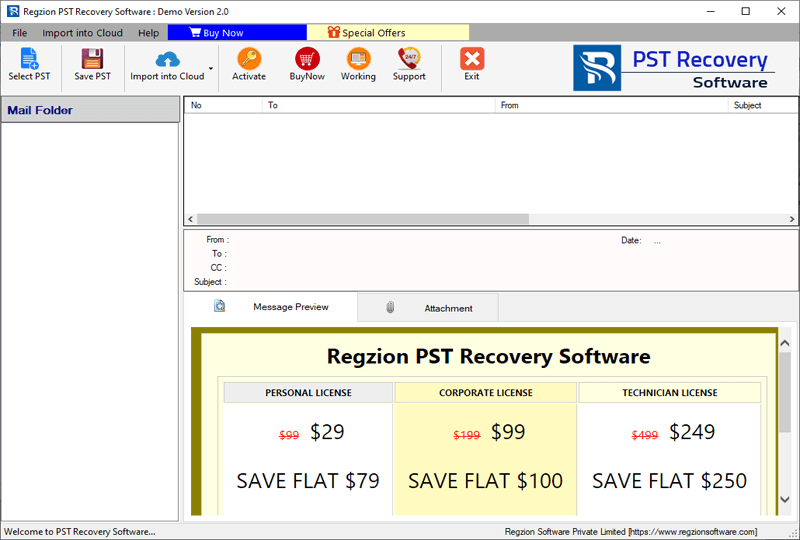
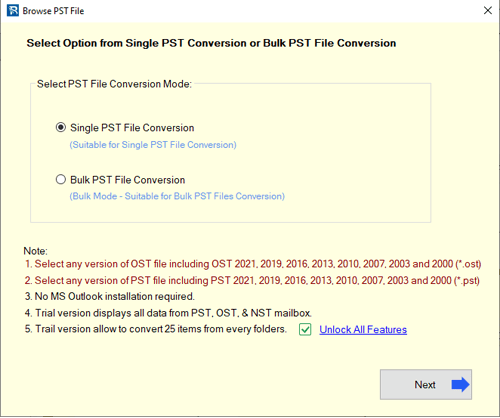
- Click on Select PST button, and choose conversion mode Single or Bulk file.
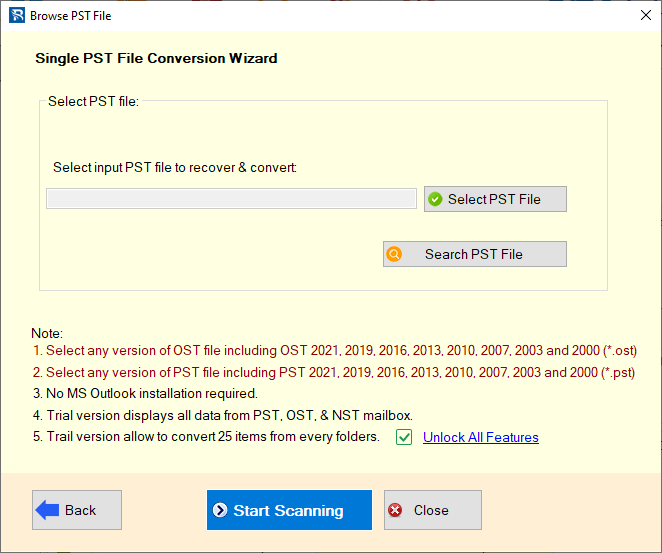
- Import the PST file (containing Outlook contacts), and press Start Scanning button.
- Load Outlook mailbox with contacts folders/items from PST files inside the software.
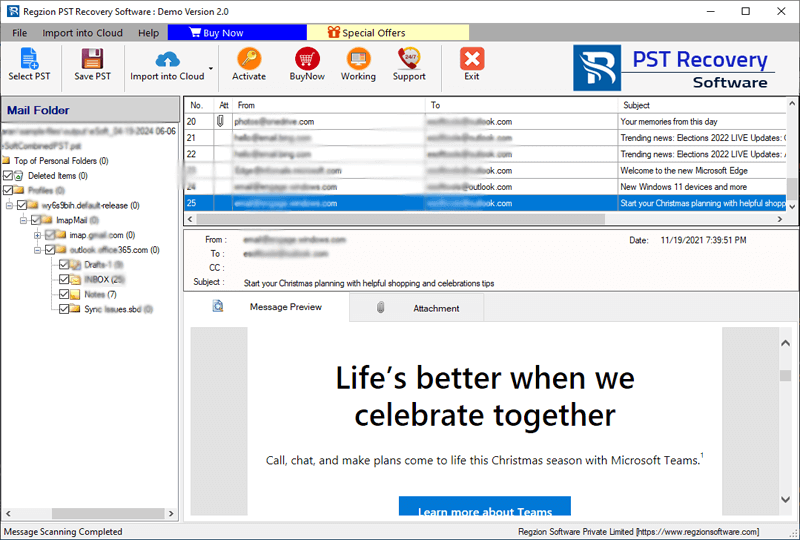
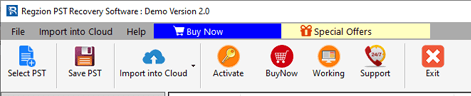
- Choose Outlook contacts folders and click on Save PST button from the menu bar.
- From the available list of conversion options, select Export to vCard.
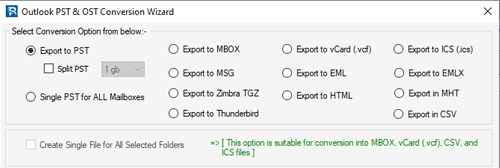
- Select “Create single file for all selected folders” option to save all the PST file contacts into a single vCard file. (Skip this if you want to save each contact as a separate vCard file).
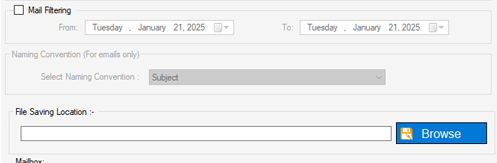
- Hit on Browse and choose a place for saving the vCard files with Outlook contacts.
- Lastly, press Convert button and start export Outlook contacts from PST to vCard files.
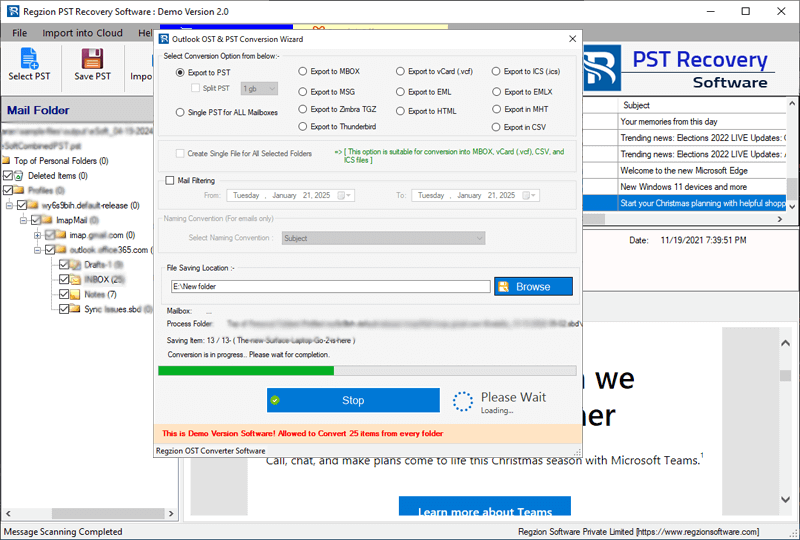
Get new vCard files with your Outlook contacts and access them easily on any supported platform you want.
Conclusion
Converting Outlook PST to vCard file with contacts is useful for transferring or sharing contacts across different platforms. While Outlook allows exporting contacts one by one, Regzian PST recovery software lets you export contacts in bulk. You can choose the method as per your convenience and get Outlook contacts to vCard easily.


No Comments yet!