
Want to switch from Outlook to an email client like Thunderbird, Apple Mail or others? PST to MBOX conversion can help to do that. If you have no knowledge of converting PST to MBOX, then from this article you can get it. So, let’s see how to convert PST to MBOX format – export Outlook mail folders.
MS Outlook is a software that comes with the Microsoft Office suite. This application enables users to manage email accounts from the desktop. Users can use multiple email accounts simultaneously in Outlook.
There are many reasons why MS Outlook is the best choice as an email client for most users. It has many smart features, but the most prominent feature is its ability to store users’ data locally.
Outlook allows users to store their email profile data locally, and provides various file types for saving. One of the most common file types for saving email profile data is PST.
Also Read: – How to Convert OST to MBOX files & Export Outlook Mail folders?
PST and MBOX Format – Overview
Before we move on to the process of converting PST to MBOX, we first need to have a quick understanding of what PST and MBOX are.
PST: – It is a file type compatible with Outlook which it uses to store users’ data locally. PST (Personal Storage Table), has the ability to hold the entire mailbox of an email profile along with various mail folders, contacts, calendars, and other stuff. Additionally, the PST file type also serves as a medium for sharing information, so users use it to create backups of their data.
MBOX: -It is also a file type for storing email profile data locally, but not for Outlook. It only works for saving emails with their relevant details (including attachments). An MBOX file can contain a mail folder with all the internal available email items. It doesn’t work in Outlook, but there are about 50+ email applications which supports MBOX format.
Why Convert Outlook PST to MBOX?
There are several reasons why users might want to convert PST files to MBOX:
- Moving Emails to Different Email Platform: – PST files only work in Outlook, so users who want to access their emails available in a PST file must convert PST to MBOX. This enables users to access Outlook emails and transfer them to email clients that support MBOX files.
- Creating Backup of Outlook Emails: – Users create backup of Outlook emails by converting PST to MBOX. Apart from the PST file, keeping an additional backup of Outlook emails as MBOX can help users in several situations. These cases can be deletion of PST file from user’s drive, accidental deletion of emails from PST, corruption in PST, etc.
- Separately saving each Outlook Mail Folder: – PST files contain a collection of mail folders, which makes it difficult for some users to quickly access the emails they need. Therefore, some users prefer to extract mail folders from PST and save each mail folder as a separate MBOX. This makes it easier for users to manage mail folders easily.
Most Reliable Solution to Convert PST files to MBOX Format
Outlook does not give users a direct option to export Outlook mail folders to MBOX file format, but you can still do it. The available solution is a tool known as Regzion PST Converter software. This is a special solution that allows converting PST to MBOX files directly.
It allows converting PST to MBOX files in 2 different modes. With one option you can export and save each folder as separate MBOX, and with the other you can combine mail folders and save all emails into one MBOX file.
Moreover, there are many advanced functions inside this tool, which makes it very easy for users to convert PST files easily and get the perfect result of the conversion.
How to Perform PST to MBOX Conversion via Regzion Software?
To perform PST to MBOX conversion using Regzion software, you can follow these general steps: –
- Download Regzion PST Recovery Software and perform its installation on a windows PC.
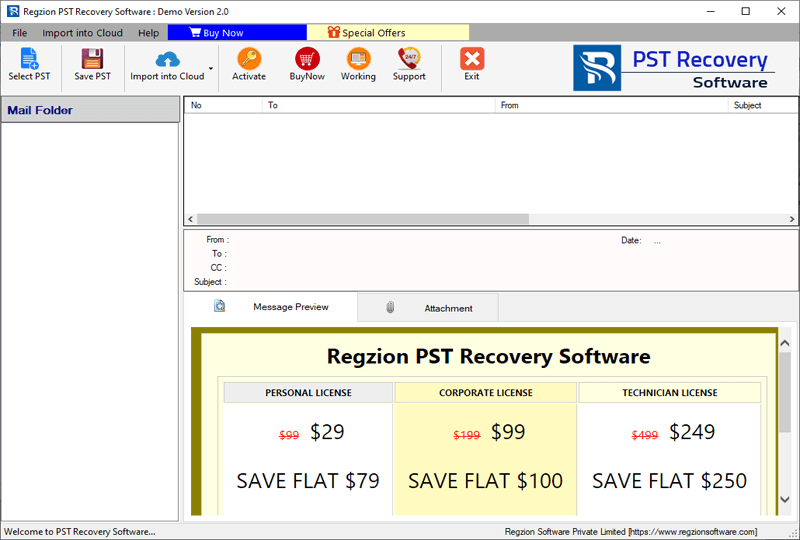
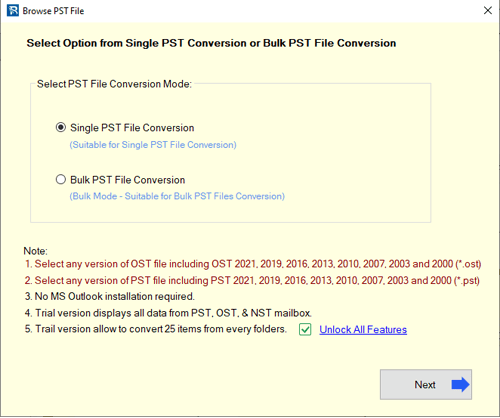
- Click on the Select PST button and choose a mode of PST file conversion (Single or Bulk).
- Add single or multiple Outlook PST files depending on your chosen conversion method.
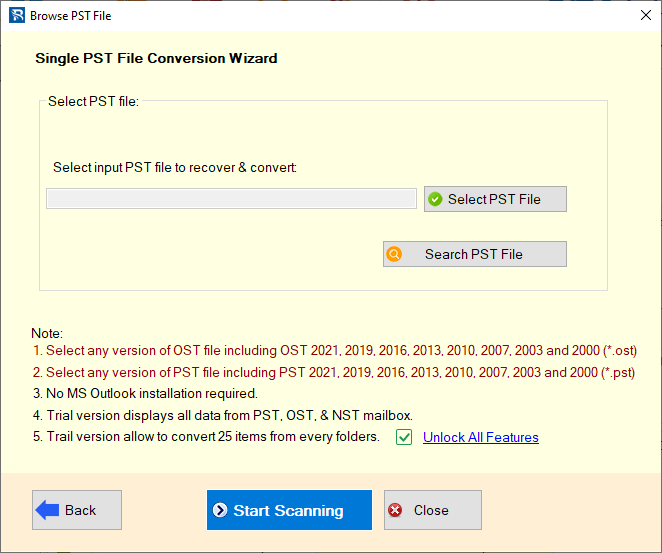
- Press Start Scanning button and load Outlook mailbox folders and items from PST file.
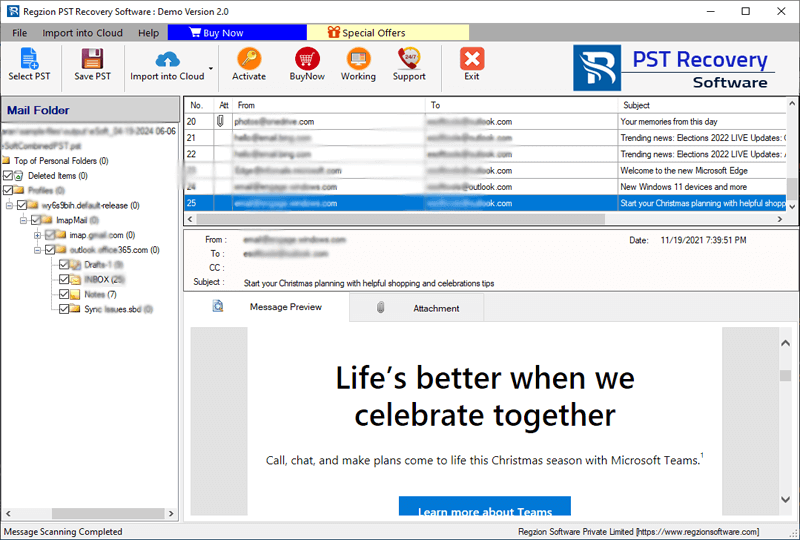
- Select mail folders from PST files that you want to save in MBOX format.
- Click on Save PST button and select Export to MBOX from the list of conversion method.
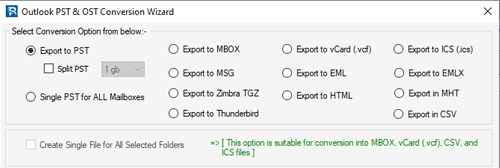
- If you want to save all the emails from different mail folders of PST files into one MBOX, then select “Create single file for all selected mail folders“, otherwise leave this option.
- Select Mail Filtering and choose the date of the emails you specifically want to extract.
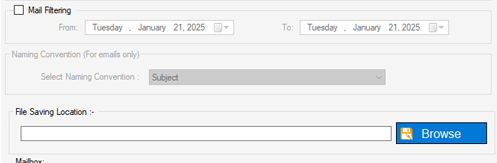
- Click Browse and specify a location on your hard drive to save the resulting MBOX files.
- Finally, hit on Convert and begin the process to Convert PST files to MBOX format.
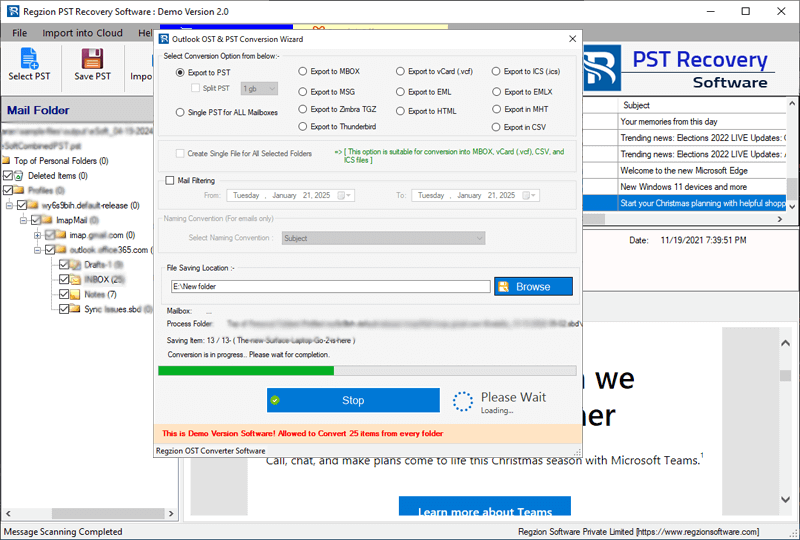
Complete the conversion and get new MBOX files containing emails of your Outlook PST file.
Conclusion
Converting PST to MBOX format is highly beneficial for many tasks, especially for users who want to switch from Outlook to other email clients like Thunderbird, Apple Mail, and more. While Outlook does not offer any direct option for this conversion, reliable third-party software like Regzion PST Converter comes as an efficient approach. By following the steps shown above, users can easily export their Outlook mail folders to MBOX format. So, try the method shown above now.

No Comments yet!