
Do you want to export/save Outlook profile data from PST file to Comma Separated Values (CSV) files? But even after doing a lot of research, unable to find the right technique to get the job done? If so, then in this article you will find the solution. Here we will tell you the smartest way to convert PST file to CSV. Let’s begin.
MS Outlook is one of the most famous applications of Microsoft. The primary use of MS Outlook is to manage email communication and email accounts.
In addition to email, Outlook also includes many other functions, like- calendar event scheduling, contact/address book management, notes creation, and more.
Users perform these tasks through Outlook, and Outlook makes a copy of the data generated by these tasks, which it stores on the user’s local drive.
Mainly Outlook uses a data file like PST to save user’s data. But for some Outlook users a situation arises where they need to export Outlook data from their PST file to CSV.
Also Read: – How to Convert OST to CSV (Comma Separated Values)?
Outlook PST and CSV File Format – Overview
PST (Personal Storage Table): – The PST file is the default file type that Outlook uses to store all your email data, including emails, contacts, calendars, and other items. It allows you to access this data locally in Outlook and can be used as a backup or to transfer data between different Outlook profiles.
CSV (Comma Separated Values): – CSV is a simple file format that stores data in rows and columns. It is easy to read and edit in spreadsheet applications such as Excel or Google Sheets. With CSV files users can easily import and export data between software programs due to their simplicity and wide compatibility.
What are the reasons to convert PST to CSV format?
There are various reasons why users need to export Outlook data from PST to CSV files, main among them are:-
- Data Transfer/Migration: PST files are Outlook-specific, while CSV files are universally compatible. Converting PST to CSV allows users to transfer data to platforms that do not support PST, and makes the data migration job hassle-free.
- Data Analysis and Reporting: – CSV files store data in a tabular format similar to a spreadsheet, making it easy to edit and analyze in Excel or Google Sheets. This makes it easy to sort, analyze, and report on information.
- Easy Access to Data without Outlook: – CSV files work across a wide range of applications and platforms. Therefore, this nature of the file makes it easier for users to access the data without the need for Outlook.
Method 1: – Export Outlook data from PST to CSV using MS Outlook
Apply these simple steps using MS Outlook and extract data from PST files into comma separated values (CSV):-
- Launch MS Outlook application and open your Outlook profile (PST file).
- Click on File >> Open & Export and click the Import/Export button.
- Select “Export to a file” option from import and export wizard screen and hit on Next.
- From the options available in export to a file screen, select “Comma Separated Values”.
- Choose a folder from you want to export data – inbox, outbox, calendar, contact, etc.
- Hit on Browse and select a location for saving new CSV file and hit on Next.
- Select Map Custom Fields … and customize fields according to your preferences. (Optional)
- Finally, press the Finish button and complete the PST to CSV data export task.
Manual Method Limitations
- MS Outlook application is the necessity (users can follow the steps in Outlook only).
- Can extract data from a working Outlook profile and does not work with corrupt PST file.
- Sometimes data fields can be misaligned or lost during export.
Method 2: – Best Way to Convert PST File CSV without Outlook
Solution that allows you to convert PST to CSV without any kind of limitations or requirement of Outlook is Regzion PST Recovery software. Using this software you can export Outlook data like- email, contacts, calendar and other information from PST files to CSV.
It saves the entire data into CSV files without making a single change in the PST files. Supports all types of PST files for conversion, including corrupted/encrypted and healthy ones.
Steps to Convert PST with Outlook data to CSV Files: –
- Download Regzion PST Recovery Software and perform its installation and run it on your windows PC.
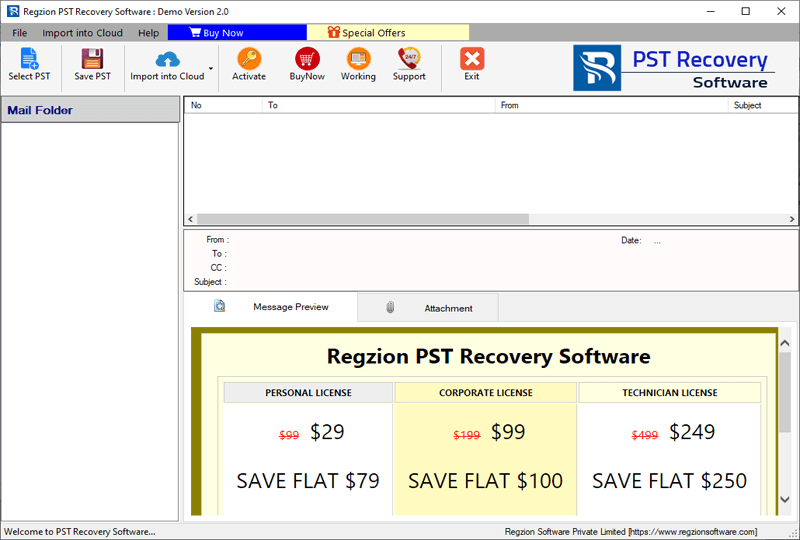
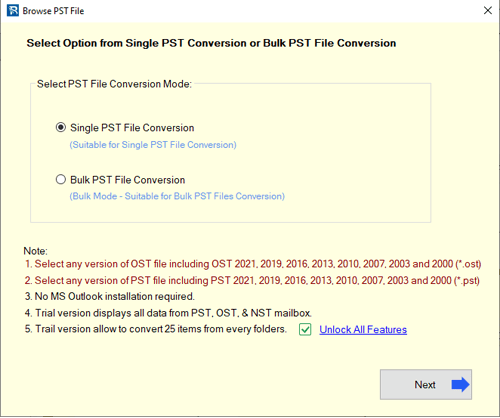
- Click on Select PST and choose the conversion mode (Single or Bulk PST File Conversion).
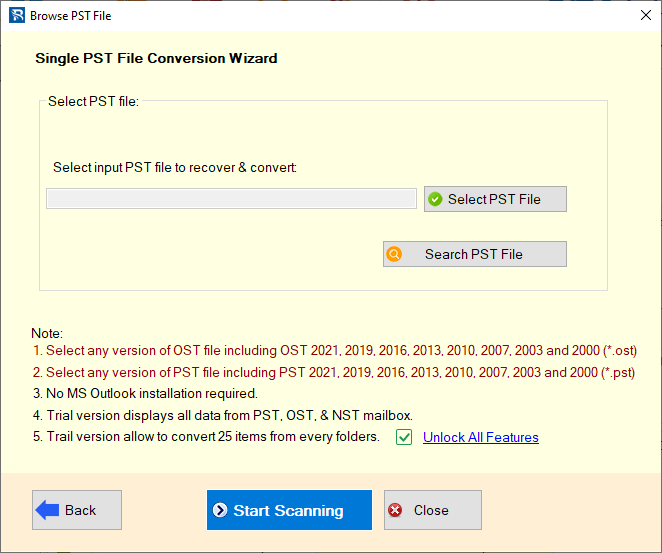
- Add PST files (single or multiple) and press Start Scanning button.
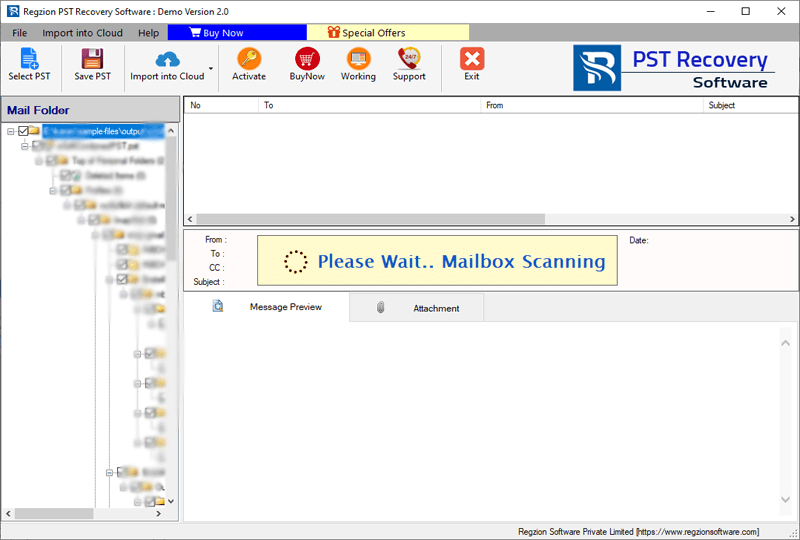
- Load Outlook mailbox folders and items from PST files into the software.
- Click on each folder and read their inner available data items of PST file in preview panel.
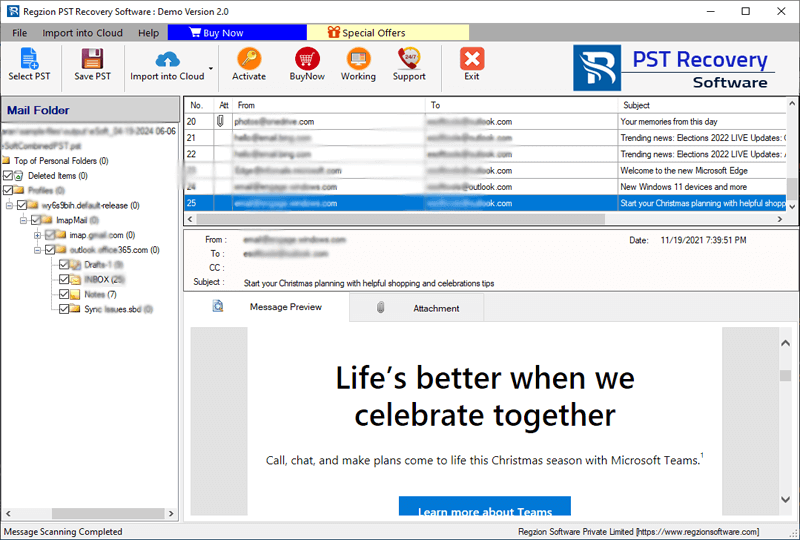
- Make selection of folders from those you want to export data items to CSV.
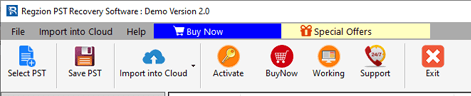
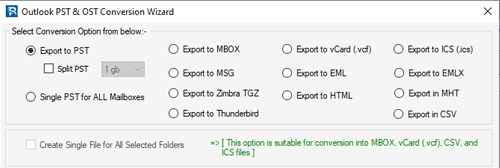
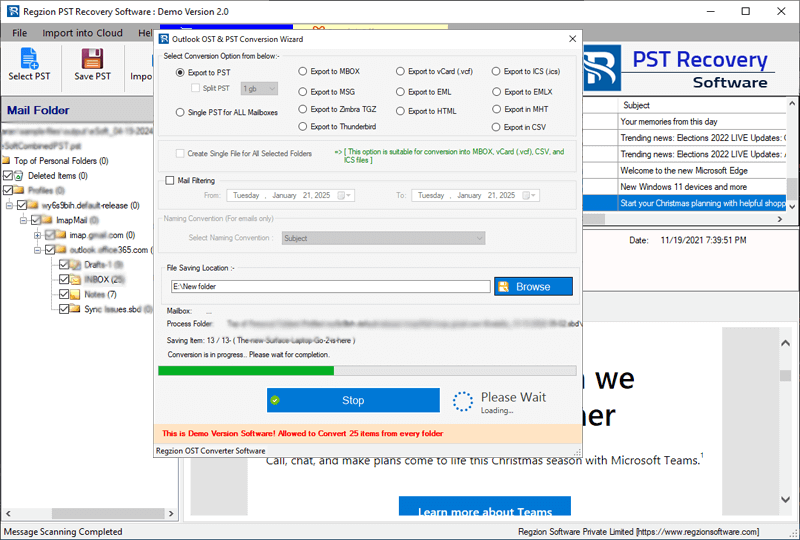
- Press Save PST button and choose the Export to CSV from available conversion options.
- Select “Create Single File for all selective folders” option for creating a single file to save all data. (Optional)
- Hit on Browse button and choose a path from your drive to save resulting CSV files.
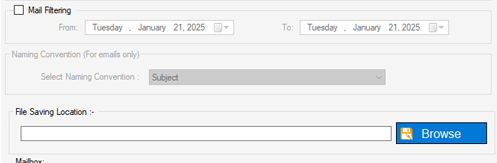
- Click on Convert to start PST to CSV Conversion and save Outlook data in CSV files easily.
Final Words
Converting your PST data to CSV can be incredibly useful for easy data migration, backup, and analysis. If you are working with a standard PST file and you have Outlook, the manual export process works well. However, if you need to extract data from corrupted PST files or want a more intuitive solution, software like Regzion PST Recovery offers a reliable option.
Above we have shown both the methods with complete step-by-step details, you can follow them and directly convert PST file to CSV. So, try them now.


No Comments yet!