
Do you want to extract Outlook calendar from PST and save it to ICS (iCalendar) file? Even after trying different methods, you are unable to complete the task? If yes, then no need to worry anymore, because this article has the solution for you. Here we show you the smartest technique to convert PST to ICS and export Outlook calendar data. Let’s start…
MS Outlook is an application that enables one to manage their various email accounts right from the desktop. Mainly users use Outlook to send/receive emails, but it is not limited to just that. It is also capable of performing several other functions, and one of them is calendar management.
Nowadays a large number of people are using Outlook to schedule important events on the calendar. Outlook handles this task very well.
Like other data of Outlook email profile, Outlook also stores calendar information inside data file PST.
A single PST file stores the complete list of calendar events and acts as a backup file. Also, it becomes a medium for quickly sharing calendar data from one machine to another.
But the problem arises when the user has to share the calendar with a program that does not support the PST file of MS Outlook.
The method that can help users in such a case is to converting PST file to ICS calendar file.
Also Read: – How to Convert OST to ICS & Export Outlook Calendar?
What is ICS ( ICalendar ) File?
ICS (iCalendar) Standard file type for storing and sharing calendar events across various platforms. Many well-known applications including Google Calendar, Microsoft Outlook, Apple Calendar, and Lotus Notes, and others all support this file type. It is cross-platform compatible, working seamlessly across Windows, macOS, and Linux devices.
An ICS file can store various event details, such as date, time, location, description, attendees, and attachments. It supports storing single as well as multiple events in a single file. Due to its lightweight nature, the ICS format can be easily shared via email or other platforms.
Benefits of Exporting Outlook Calendar from PST file to ICS: –
- Cross-platform Compatibility: – PST only supports working within Outlook, but this is not the case with ICS. ICS files work on a variety of applications on different platforms (Windows, macOS, Linux, and mobile devices).
- Easy Calendar Information Sharing: – ICS is more convenient than PST for sharing calendars due to its lighter weight and wider support.
- Backup and archiving: – By exporting calendar data from PST to ICS files, users can create a backup of their important calendar events. This will help in recovering forgotten events in future.
Method 1: Save Outlook Calendar Events as ICS in Outlook
- Launch MS Outlook application on your computer and open the data file PST.
- Click on Calendar icon from the bottom left corner and switch from email to calendar.
- Select calendar event/group, open it and press File >> Save Calendar (Save AS).
- Choose a saving path and apply the settings, File Name, Save As Type: ICalendar Format(*.ics).
- Click on more options and for date range selection or other advanced option.
- Press Save button and start the saving Outlook Calendar in ICS files.
Method 2: – Smartly Export Outlook Calendar from PST to ICS
The above method only works for PST file and also requires MS Outlook application. If you don’t have Outlook or are facing corruption issues in PST file, then you must use the program Regzion PST Recovery software.
It is a feature-rich utility for Outlook users to recover calendars and other data from inaccessible PST. Moreover, it also effectively allows exporting to different file types including ICS format. It also allows saving each calendar event to a separate ICS file as well as saving all PST calendars to a single ICS file. Moreover, it has the ability to work with multiple PST file simultaneously and like this there is many other smart options to make this calendar export task more awesome.
How to use Regzion Outlook PST to ICS Converter Software?
Convert Outlook PST to ICS with calendar entries through Regzion PST Recovery software and follow the below steps: –
- Download, and run Regzion PST Recovery/Converter Software.
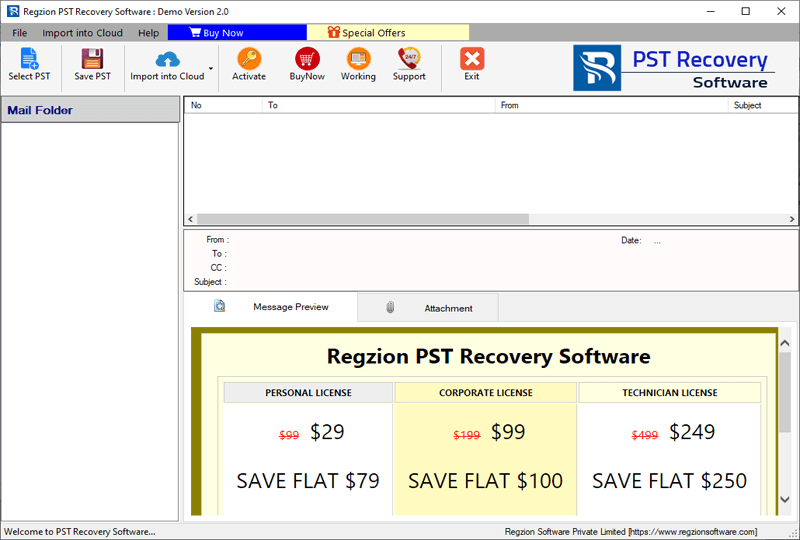
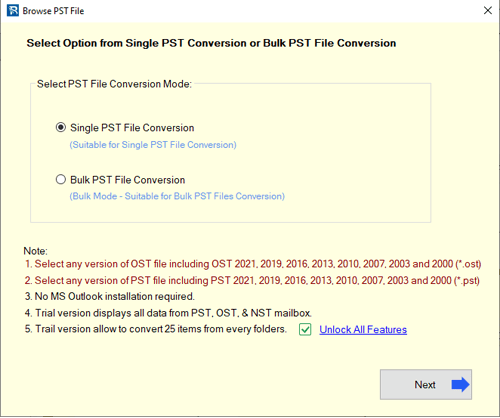
- Click on Select PST button and choose the mode of file conversion (single or bulk).
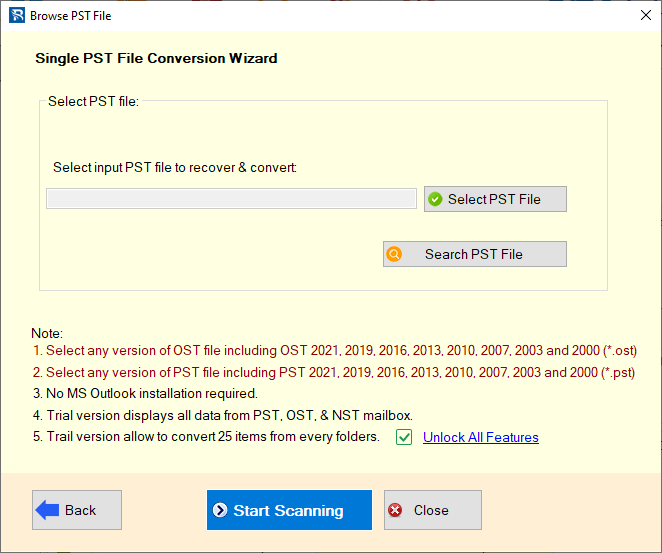
- Add single or multiple PST file and hit on the Start Scanning button.
- Load data from PST files into the software and view in preview panel.
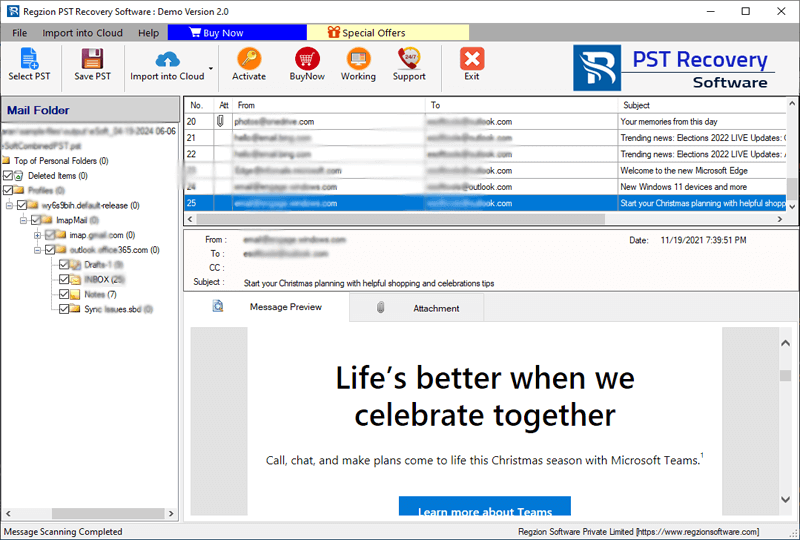
- View the available items from PST files (calendar) and choose the necessary folders.
- Click on Save PST and select Export to ICS from the next screen showing conversion formats.
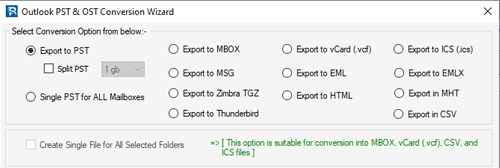
- Select/enable “Create single file for all selected folders” to create a single ICS filer to save all calendar entries. (Skip this if you want to save each calendar event as a separate ICS file.)
- Hit on Browse and choose a path for saving the resulting ICS file containing calendars.
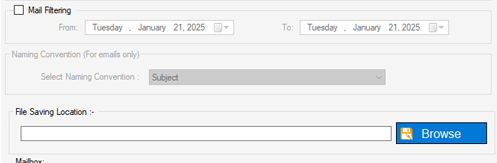
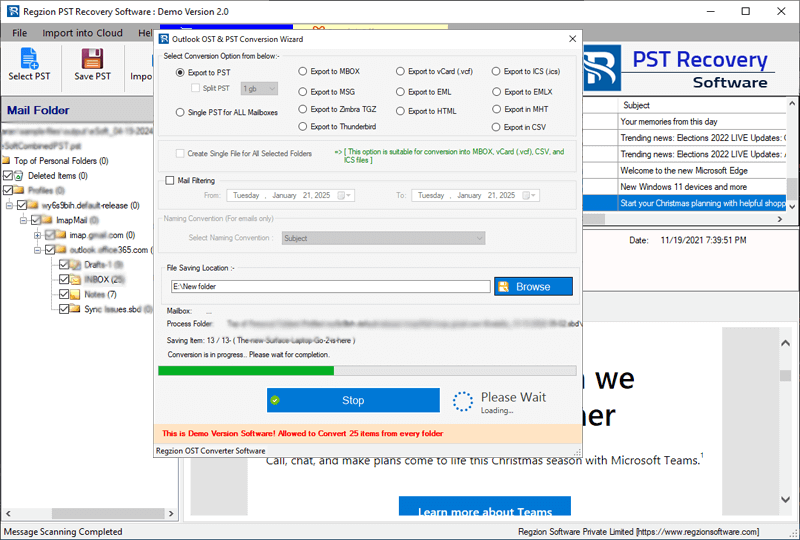
- Finally, press Convert button and begin the PST to ICS Conversion and export Outlook calendar to ICS files.
Conclusion
Converting your Outlook calendar from PST to ICS format is a smart way to easily share calendar events and do many other things. By following the steps in this guide, you will be able to easily export your Outlook calendar to an ICS file.
You can save Outlook calendar to ICS with the built-in export feature in Outlook. But for more accuracy and ease, you should use a third-party tool like Regzion Outlook PST to ICS Converter. It will provide a more robust and efficient solution to handle multiple PST files. So try it now.


No Comments yet!