How to Open/View Thunderbird Emails via "Thunderbird Viewer"?
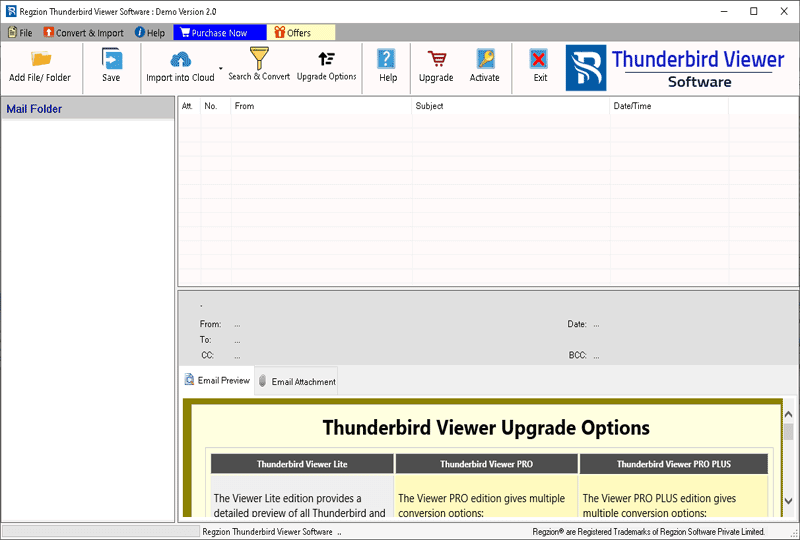
Regzian Thunderbird Email Viewer software, that allows you to open Thunderbird emails with all elements. View emails with every linked elements including text, images, hyperlinks and formatting. Supports MBOX, MSF, MBOX files without extension to read emails. Also, Pro Edition and Pro+ Edition is available which has features to export/convert Thunderbird emails to PST, PDF, EML, Gmail, Yahoo Mail, Office 365 and other options..
Software Guide
-
#1 - Open Thunderbird Email
- Select MBOX File
- Select MBOX Folder
- Auto-Load Thunderbird Profile
-
#2 - Thunderbird Conversion
- Convert Thunderbird Email to PST
- Convert Thunderbird Email to EML
- Convert Thunderbird Email to EMLX
- Convert Thunderbird Email to MSG
- Convert Thunderbird Email to HTML
- Convert Thunderbird Email to MHTML
- Convert Thunderbird Email to MBOX
- Convert Thunderbird Email to CSV
- Convert Thunderbird Email to PDF
- Convert Thunderbird Email to NSF (Lotus Notes)
- Convert Thunderbird Email to TGZ (Zimbra)
- Convert Thunderbird Email to Thunderbird
-
#3 - Thunderbird Email to Cloud Migration
- Migrate Thunderbird Email to Gmail
- Migrate Thunderbird Email to Yahoo Mail
- Migrate Thunderbird Email to Office365
- Migrate Thunderbird Email to IMAP Webmail
How to Open/View Thunderbird Emails via Regzion Thunderbird Viewer Tool?
Step 1 ) Download and install the Regzion Thunderbird Viewer software on your computer, then launch it.
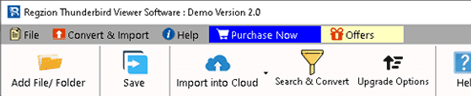
Step 2 ) Open the software and click on the "Add File/Folder" button from menu bar.
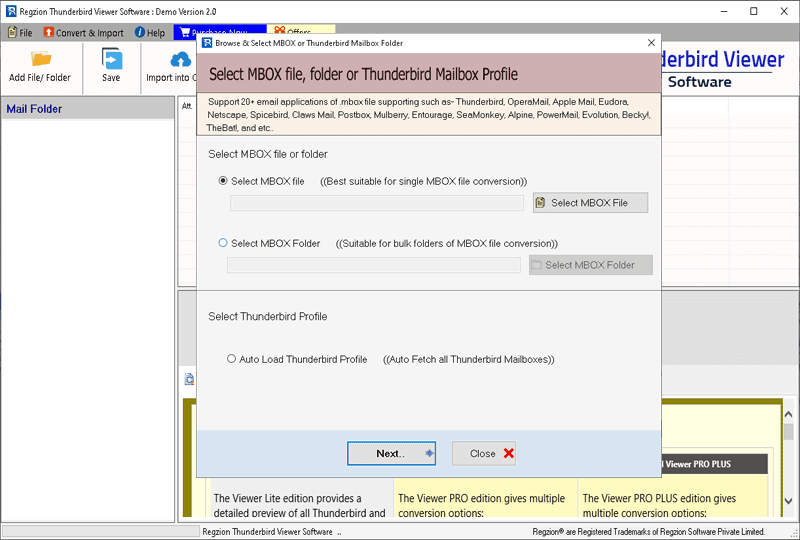
Step 3 )Choose your preferred method for adding Thunderbird mail files: -
- Select MBOX File: - Add an individual Thunderbird MBOX/MSF file from a specific location.
- Select MBOX Folder: - Select and add a folder containing multiple Thunderbird mail files (MBOX, MSF, SBD Folder, etc.).
- Auto-Load Thunderbird Profile: - Automatically detect and load the complete Thunderbird profile, including all mail files and folders.
After selecting the file adding option, and inserting Thunderbird mail files, click on the Next button.
Step 4 ) Load emails from inserted Thunderbird mail files. Click on each Thunderbird email and get its preview in preview panel.
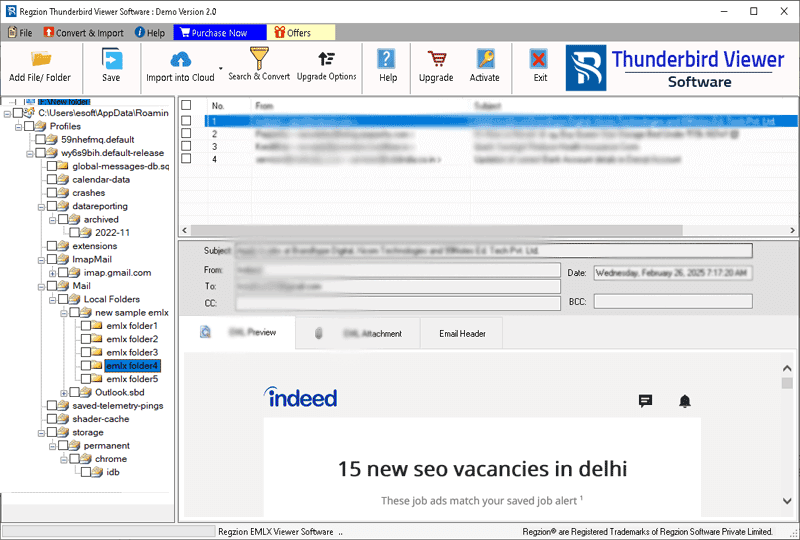
Note; - Double-click on any email to open it in a separate window for a detailed view.
Steps to Convert Thunderbird Email with Thunderbird Viewer (Pro)
Step 5 ) Choose required mail folders from folder's list and hit the Save button.
Step 6 ) Select a "Conversion Format" from these available options: -
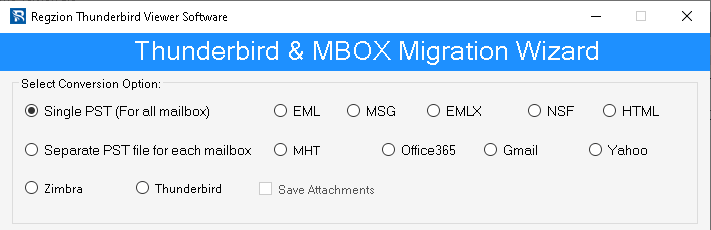
- Single PST (for All Mailbox): - Combine all mailbox data from multiple Thunderbird mail files into a single PST file.
- Separate PST file for each All Mailbox: - Create individual PST files for each mailbox (thunderbird file' mail folder).
- MSG: - Export each email as a separate MSG file for easy viewing in Outlook.
- EML: - Save emails in EML format, making them compatible with various Windows-based email clients.
- EML: - Convert emails to EMLX format for compatibility with Apple Mail (macOS-based email client).
- HTML: - Convert emails to HTML format for viewing in any web browser.
- MHTML: - Save emails and attachments in MHTML format for offline access.
- NSF (Lotus Notes): - Convert emails to NSF format for import into IBM/HCL Lotus Notes.
- Thunderbird: - Directly import emails into Thunderbird local folders.
- Zimbra: - Export emails to TGZ format for quick and easy import into Zimbra Desktop.
Step 7 ) apply the necessary settings: -
- Mail Filter: - Set a date range to filter and export only the emails of the specified timeframe.
- Naming Settings: - Customize the file names for converted emails by selecting from a list of predefined naming options.
- Saving Location: - Choose the destination folder on your computer where the converted files will be saved.
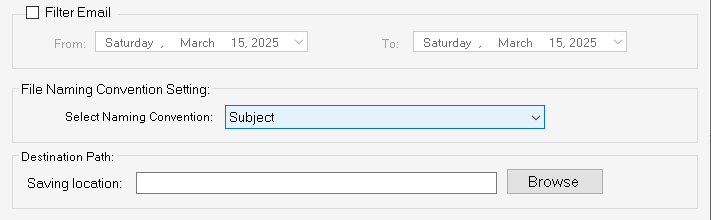
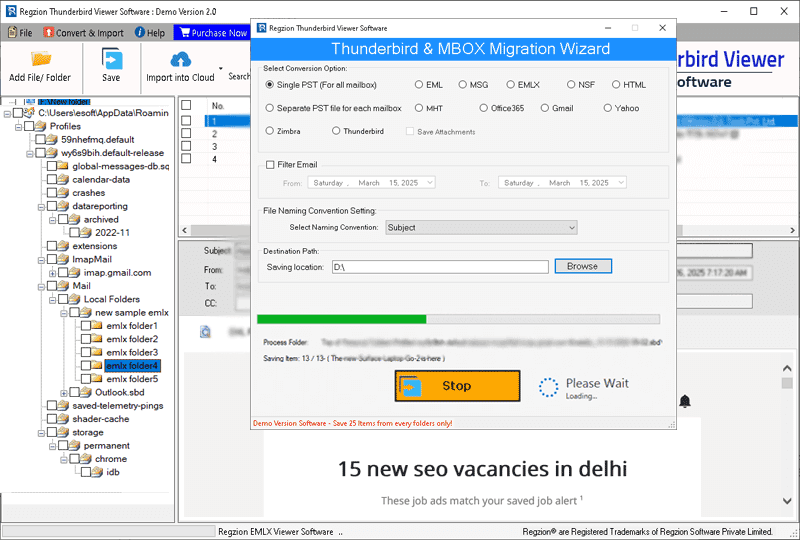
Step 8 ) Once you've configured the settings, click on Convert to begin the Thunderbird email conversion to your selected format.
How to Import Thunderbird Emails to Gmail, Yahoo Mail, Office365, & IMAP
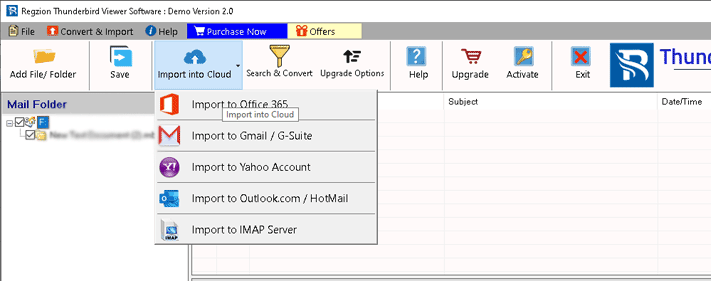
Step 6 )Select the thunderbird mail folders you want to import, then click on the Import into Cloud button.
- Import to Office365
- Import to Gmail / G-Suite
- Import to Yahoo Account
- Import to Outlook.com/Hotmail
- Import to IMAP Server
From the drop-down menu, select your preferred cloud import option:
Import Thunderbird Email to Office365 Account
Step 8 )
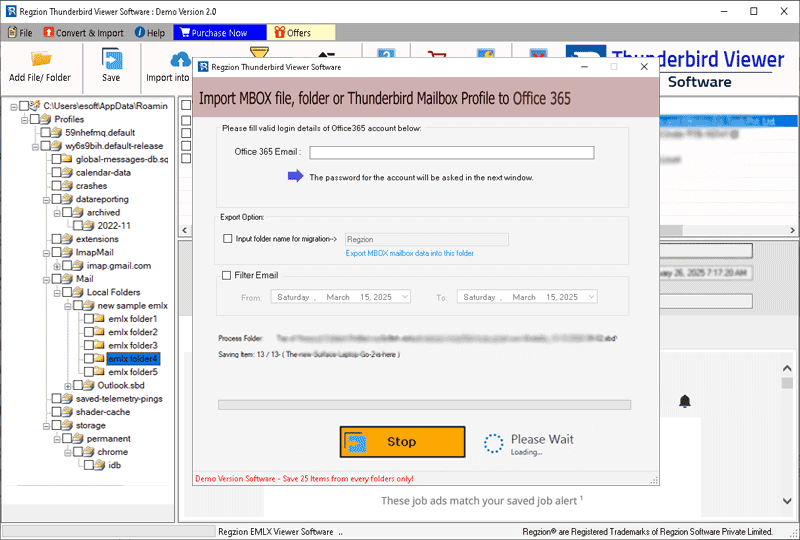
Select the Import to Office 365 option and configure the migration settings.
- Enter the email address of your Office365 Account.
- Folder Name for Migration : - Create a folder in your Office 365 account where the imported emails will be stored.
- Email Filter: - Apply a date filter to import only the emails of the specified date range.
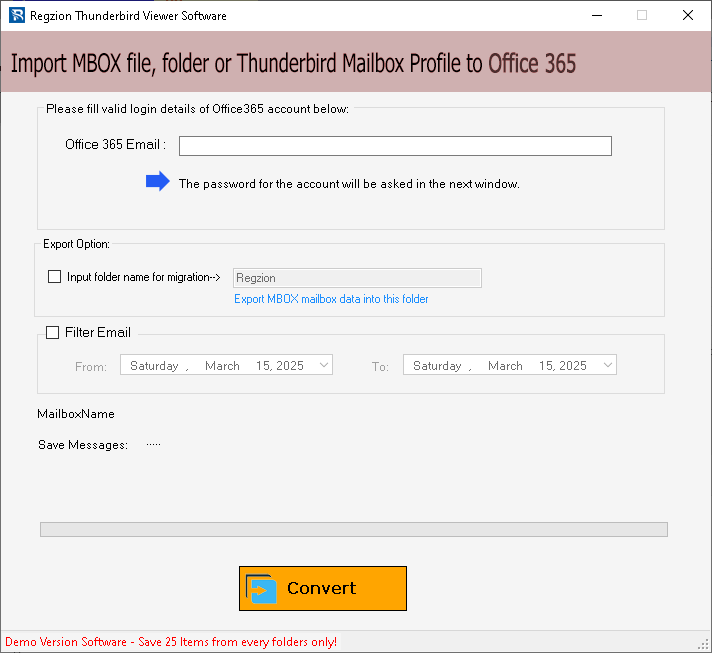
Step 9 ) Click on the Connect & Import button, sign in to your Office 365 account, and start migrating Thunderbird emails to Office365 account.
Import Thunderbird Email to Gmail Account
Step 8 )
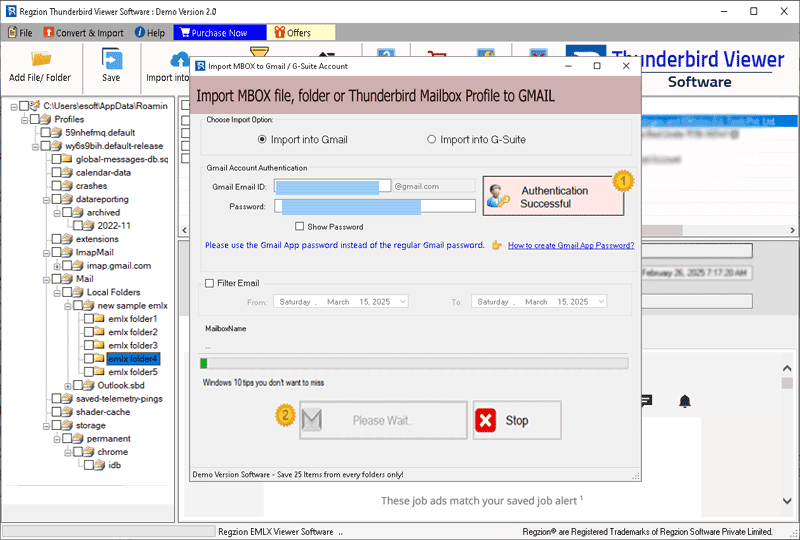
Click on Import to Cloud >> Import to Gmail, and choose either Import into Gmail or Import into G-Suite (Google Workspace) in next screen.
Insert Gmail account Email Address and App Password
Click on the Authenticate Login button to securely sign in to your Gmail account.
- Configure Import Settings: -
- Select Gmail Folder: - Choose an existing folder from your Gmail account for the imported Thunderbird emails.
- Create New Folder: - Optionally, create a custom folder to store the imported emails.
- Apply Email Filter: - Use date range mail filter function to selectively import emails.
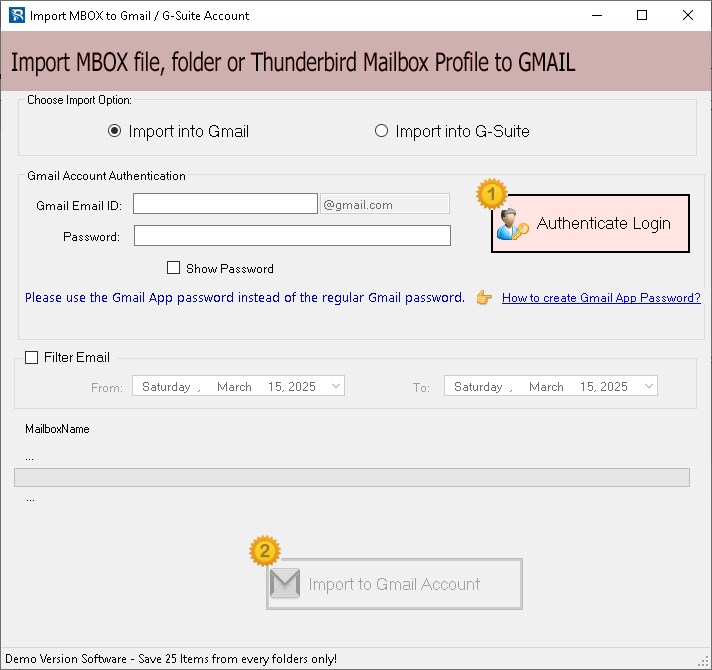
Step 9 ) Click the Convert button to start transferring your EMLX emails into your Gmail or G-Suite account.
Import Thunderbird Emails to Yahoo Mail Account
From the cloud import options, select Import to Yahoo Import.
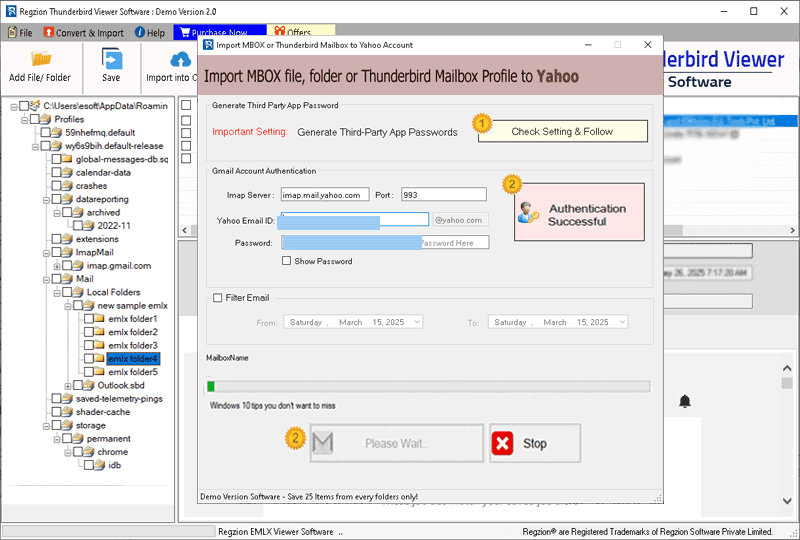
Provide your Yahoo Mail account's Email Address and Third-Party App Password
Click on Authenticate Login to sign in to your Yahoo account securely.
- Customize the import settings:
- Create New Folder: - Create a new folder in your Yahoo Mail account to store imported emails.
- Mail Filter: - Apply filters by date range to export emails of specific dates only.
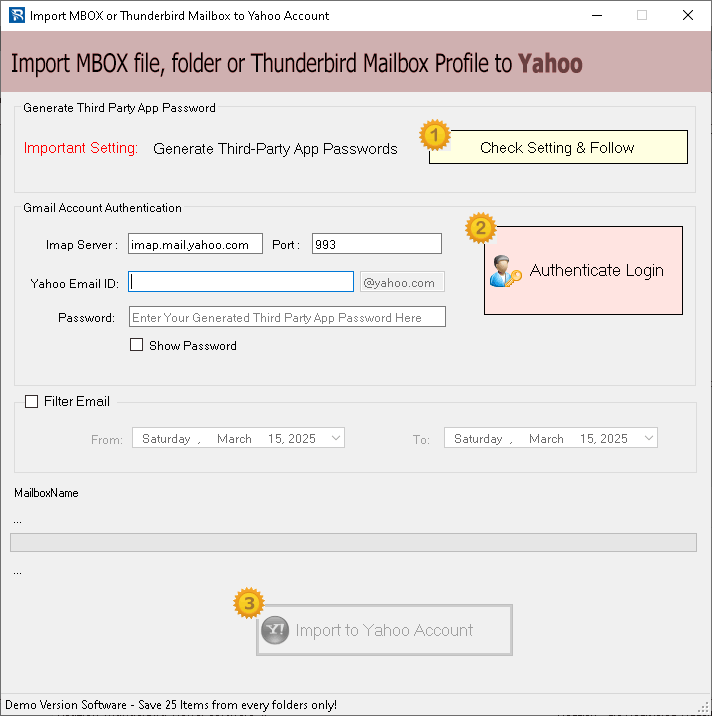
Step 9 ) Press Convert button and to initiate the transfer of Thunderbird emails to Yahoo Mail account.
Import Thunderbird Emails to IMAP Account Server
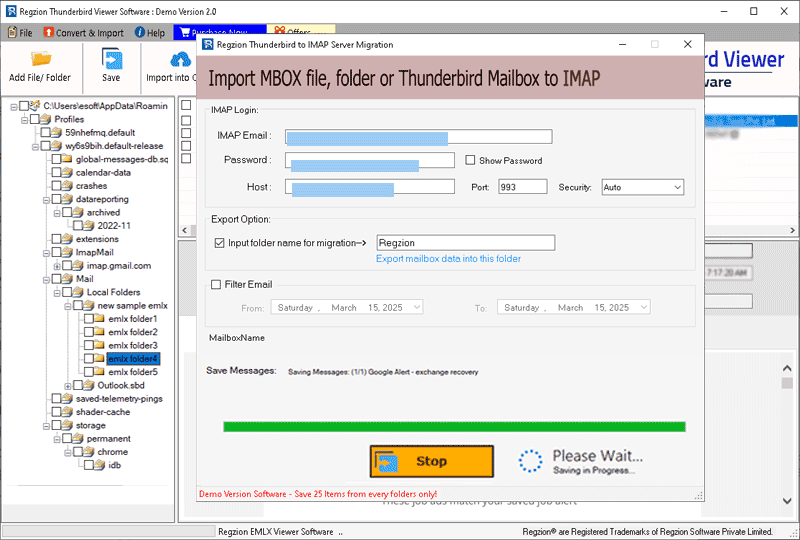
Select Import to IMAP from cloud migration options.
Enter your Email Address, Password, Port, and Host Name of IMAP server account.
- Choose the Import method: -
- IMAP Folder: - Choose an existing folder in your IMAP account to store imported Thunderbird emails.
- Create New Folder: - Optionally, create a new folder in your IMAP account for better organization.
- Mail Filter: - Apply filters of date range to selectively import specific emails based on specified date.
Set Up Import Preferences
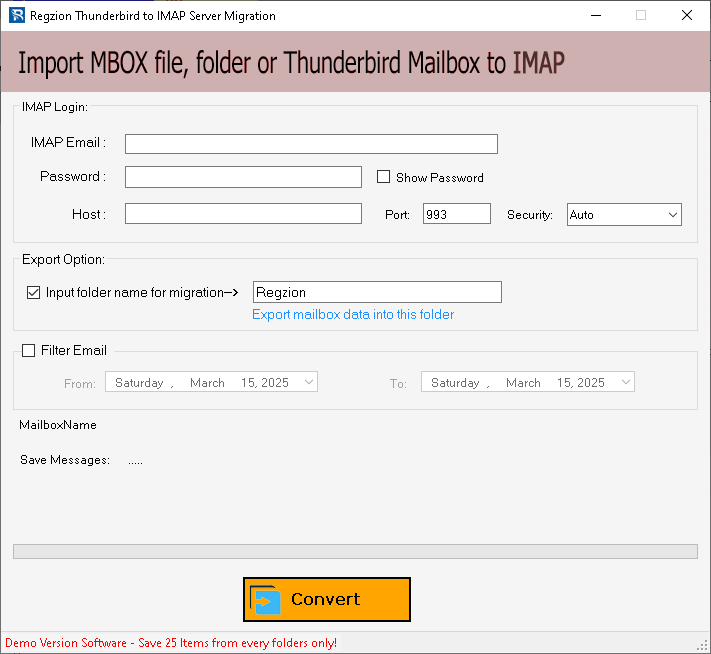
Step 9 ) Click Convert to begin transferring your Thunderbird emails to your IMAP account.