How to use Regzion Outlook Email Address Extractor - Guide
Outlook Email Address Extractor by Regzian Software, smartest utility designed to simplify the process of extracting email addresses and attachments from Outlook data files. Supports PST, OST and NST formats and works even without the need for Outlook. Comes with intuitive design and powerful extraction filters. Smoothlly works to scan, preview and export data from Outlook files- in just a few clicks..
Software Guide
-
#1 - Open Outlook PST / OST file
- Add Outlook Files
- Add Outlook Folders
- #2 - Extract Outlook Email Address
- #3 - Extract Outlook Email Attachment
Steps to Extract Email Addresses from Outlook Data Files PST/ OST and NST files -
Step 1 ) Download Regzion Outlook Email Address Extractor software and Install it your PC running on Windows O/S.
Step 2 ) Press "Select OST" button from the top menubar of the software.

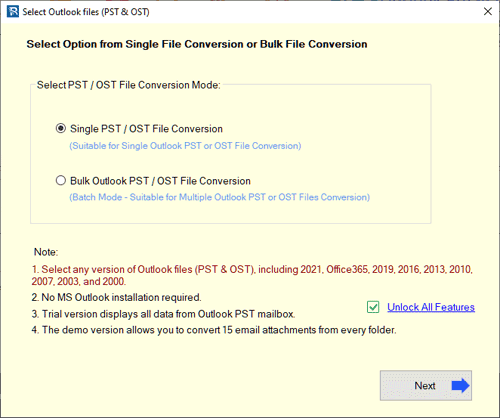
Step 3 ) Choose a file inserting method from available 2 options: -
Single OST / PST File Conversion
Select "Single OST / PST File Conversion" radio button option and hit on Next to proceed.
>>
Click on "Select PST / OST File" or "Search PST / OST File" button and add insert your Outlook database file PST / OST / NST from their location. (one file at a time).
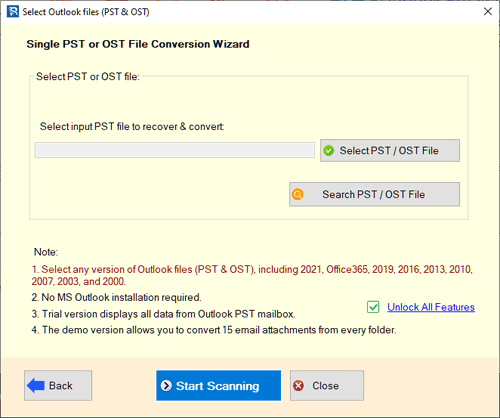
After inserting the files, hit on the "Start Scanning" button and load Outlook mailbox folders and items.
Bulk OST / PST File Conversion
Choose the option "Bulk OST / PST File Conversion" from available file insert modes and hit on Next.
>>
Press the "Add PST / OST File" or "Add PST / OST Folder" button and insert multiple Outlook files or folders for extraction (at one time).
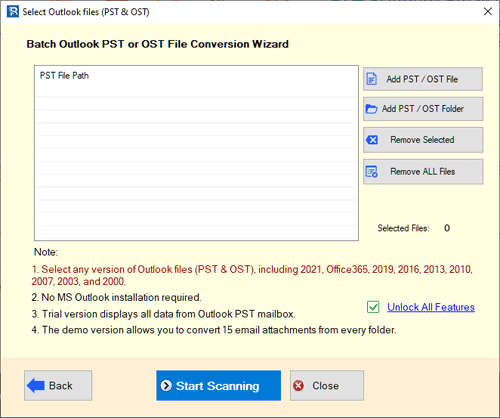
After inserting the required Outlook files, press "Start Scanning" button.
Step 4 ) Start the process of Outlook file scanning and load all mailbox folders/items from inserted file into the software.
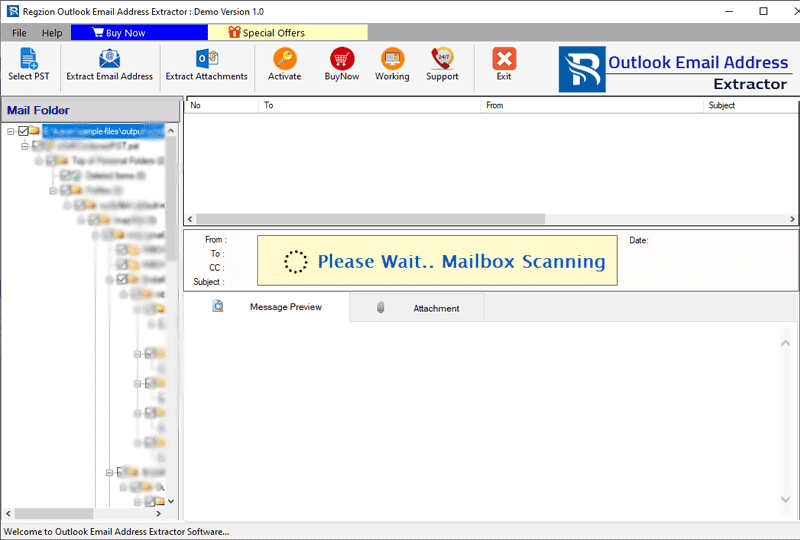
Step 5 ) Get preview of all data items in the preview panel of the software, and follow the next steps for extraction job.

How to Extract Email Addresses from Outlook Items using Regzion Software?
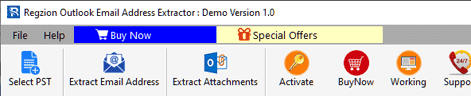
Step 5 ) Select the Outlook folders from which you want to extract email addresses. Then, click the Extract Email Address button in the toolbar to proceed with the extraction.
Step 6 ) Configure your email address extraction settings: -
- Saving Format: - select a file from available 4 options in which you want to save your email addresses - TXT, HTML, CSV, and PDF.
- Email Filter Criteria: - Specify the sections from which to extract email addresses - To, From, CC, BCC, Email Body or Select "All" for extraction from all fields.
- Mail Filter (Optional): - Optionally, restrict the extraction to emails within a certain date range. Extract email address from emails of specific date ranges.
- Saving Location: - Select a folder from your computer where the software will save the files containing the email addresses.
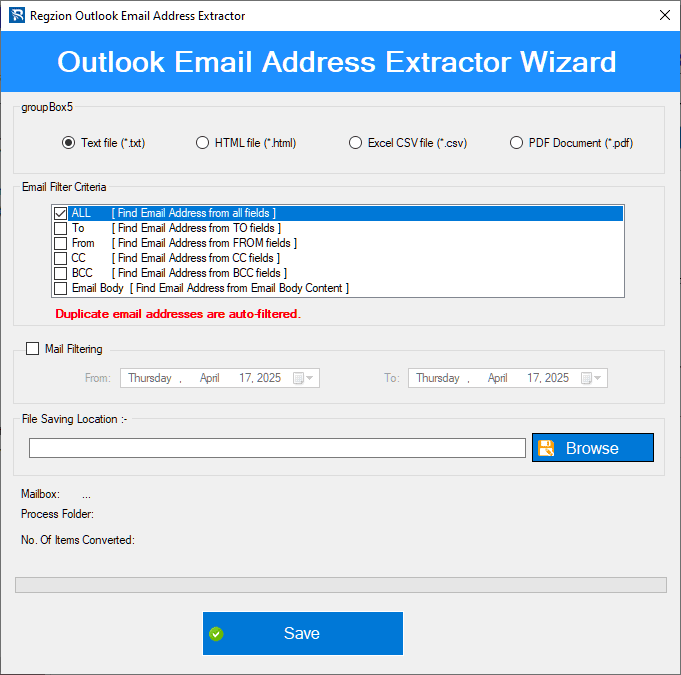
Step 7 ) After finalizing these settings, click on Save button and a new screen will appear on your screen with options.
- Create Single File : - Save all email addresses in single file.
- Create Create Separate File according to Mail Folder name: - For each mail folder create separate file and save the email addresses of associated items.
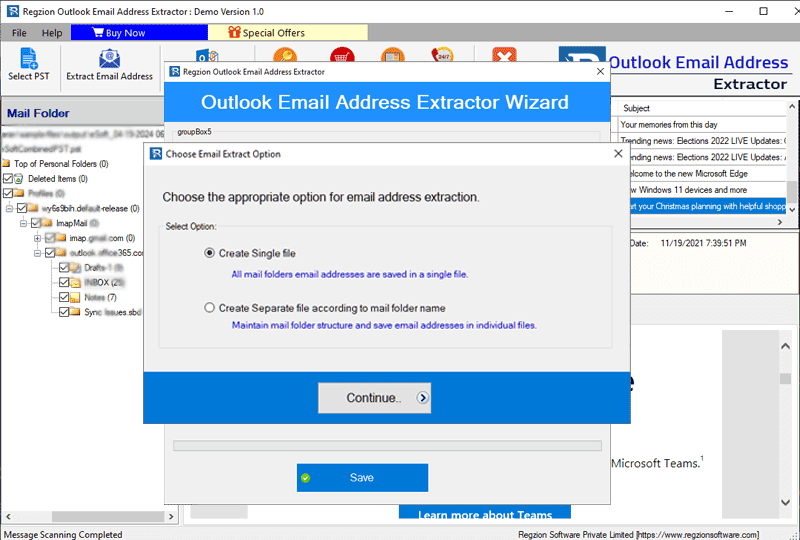
Choose the saving method from the the available options and lastly click on Continue and start email address extraction of email addresses based on your preferences and chosen format.

How to Extract Attachments from Outlook Files via Regzion Software?
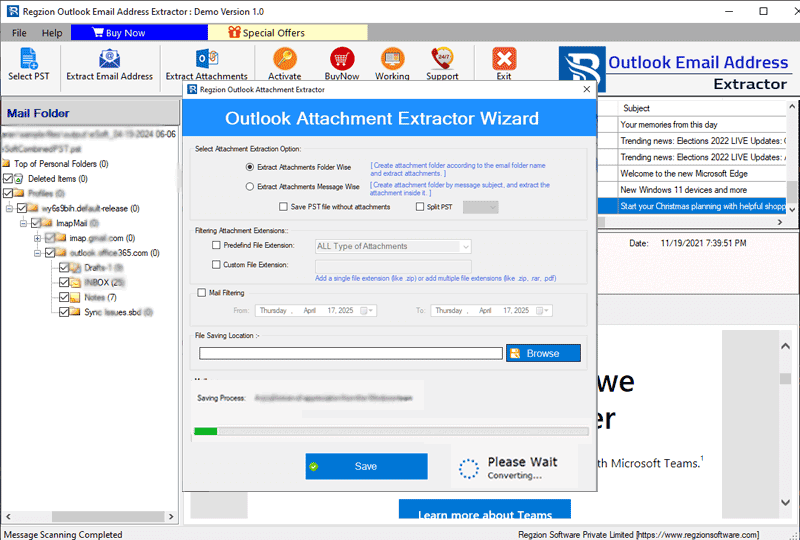
Step 5 ) Once you have added your Outlook data files, select the specific mailbox folders containing items with attachments. Hit on the Extract Attachments button from the options available in the top navigation menu.
Step 6 ) Customize your attachment extraction settings: -
- Extract Attachments Folder-wise: - Extract attachments from selected folders from Outlook files. Recreate the same folder structure on your local drive and store the attachments accordingly.
- Extract Attachments Folder-wise: - Create individual folders for each email message and store attachments based on their respective items.
- Save PST Without Attachments: - Extracting attachments, and also create a new PST file that contains only the Outlook items, excluding attachments.
- Save Attachment in separate folder by Message Subject: - Split the newly created PST file (without attachments) into smaller files based on size ranges such as 1GB, 2GB, 3GB, up to 25GB.
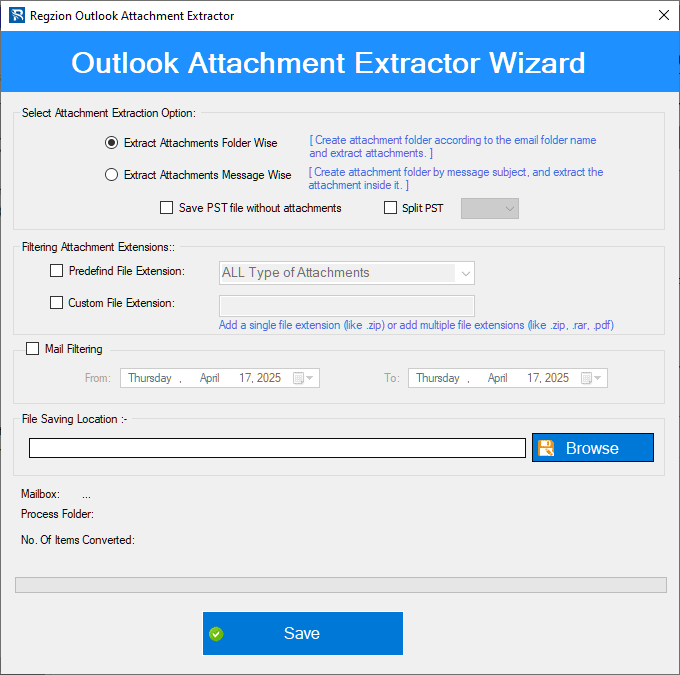
- Predefined File Extensions: - Select from a list of common file extensions (e.g., .PDF, .DOCX, .JPG) to specifically extract those types of attachments.
- Custom File Extensions: - Input a custom extension (e.g., .XLSX, .PNG) to extract attachments of that type.
- Mail Filter (Optional): - Specify a date range to limit extraction to emails sent or received within a specific period. Only attachments of emails within the selected range will be extracted.
- File Saving Location: - Choose the destination folder on your local drive where the attachments will be stored.
Filtering Attachment Extensions:
Other Settings:
Step 7 ) Once you have configured your extraction preferences, click the “Save” button to begin the process of extracting attachments from Outlook data files.