How to Set Up "Zoho Mail" in Third-Party Apps?
To use Zoho Mail with third-party applications like Outlook, Thunderbird, or Regzion tools, you need to enable IMAP and generate app-specific password. This is the complete guide to done these settings. So, lets start reading.
Zoho Mail Setup Guide
Step 1: Enable IMAP Access in Zoho Mail
1 ) Firstly, Log in to your Zoho Mail account.

2 ) Click on Settings gear icon from available options in right side on your screen.

3 ) From the opened pop up screen, scroll the side bar on down side and select Mail Accounts.

3 ) Select IMAP and click on IMAP Access and click on Save and easily enable IMAP.

Step 2: Generate Application-Specific Password
1 ) Click on the Profile icon in Zoho Mail.
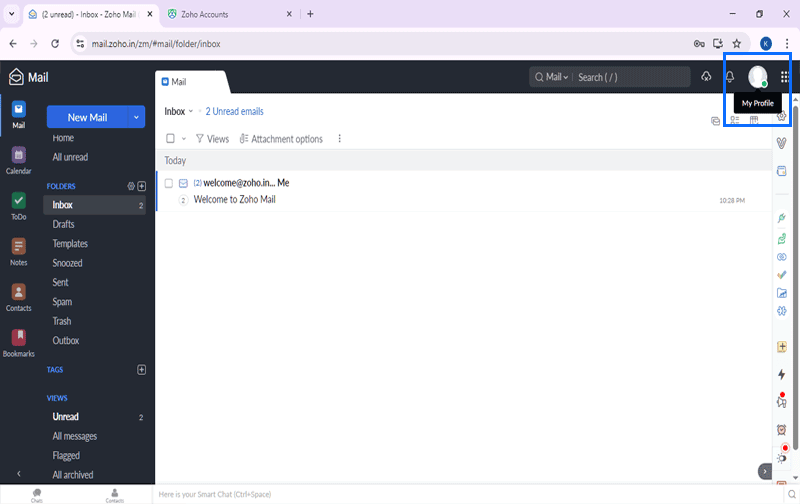
2 ) Hit on My Account and visit to Zoho Mail account settings

3 ) Click on Security, select or move to App Specific Passwords area, and click on Generate App Password button.

4 ) Enter App Name (For Example- Regzion) and click on Generate.

5 ) Get the Application-Specific Passwords by clicking on Click to Copy button.

Step 3: Configure Zoho Mail in Regzion Software
1 ) Open a Regzion Software and for Zoho Mail account login enter following IMAP/SMTP details:
- IMAP Server: imap.zoho.com
- IMAP Port: 993 (SSL)
- SMTP Server: smtp.zoho.com
- SMTP Port: 587 (STARTTLS)
- Username: Your full Zoho email address
- Password: The App Password generated earlier
3 ) Save the settings and test the connection. Once successful, you're ready to use your Zoho Mail account in Regzion Software.
