How to Set Up "Yandex Mail" for Third-Party App Login?
This guide will walk you through setting up Yandex Mail for use with third-party applications such as Regzion's email backup and migration tool.
Stage 1: Enable IMAP in Yandex
1) Go to mail.yandex.com and log in with your Yandex Mail account.
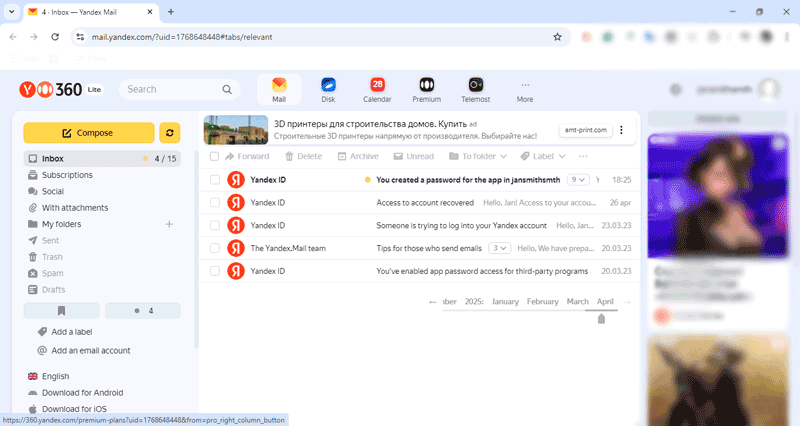
2) Click the "Settings" gear icon at the top right and then hit on " All Settings → ".
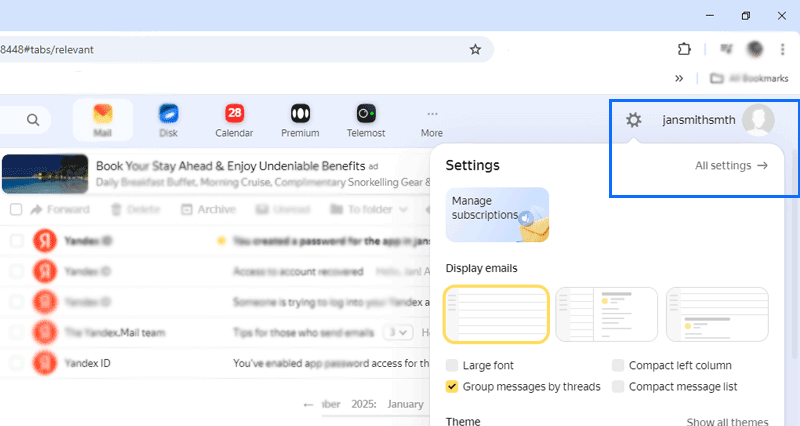
3) Hit on the Email Clients tab from the available list of options.
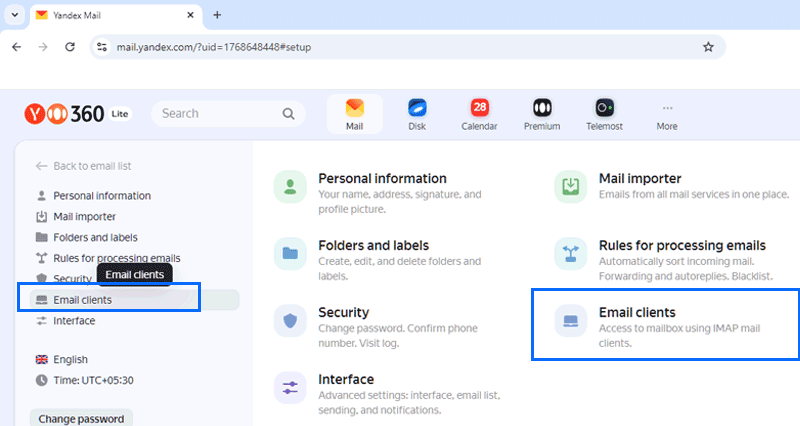
4) Enable IMAP by checking the box From the imap.yandex.com server via IMAP.
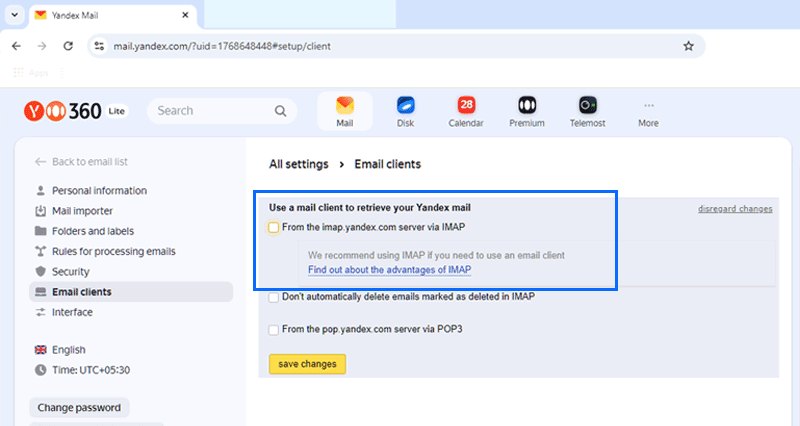
5) Save the settings by clicking "Save Changes" button.
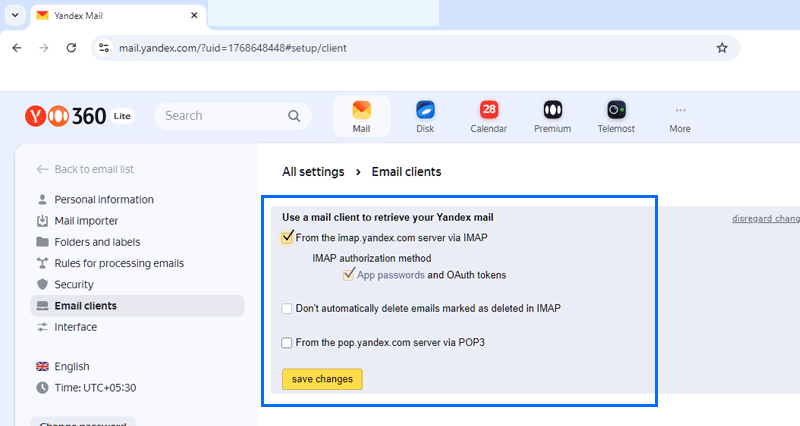
This enables IMAP login in Email clinet and Third-party apps for your Yandex account.
Stage 2: Create Yandex App Password
1) Log in to Yandex at mail.yandex.com and again access your account settings. (with same steps you have done before).
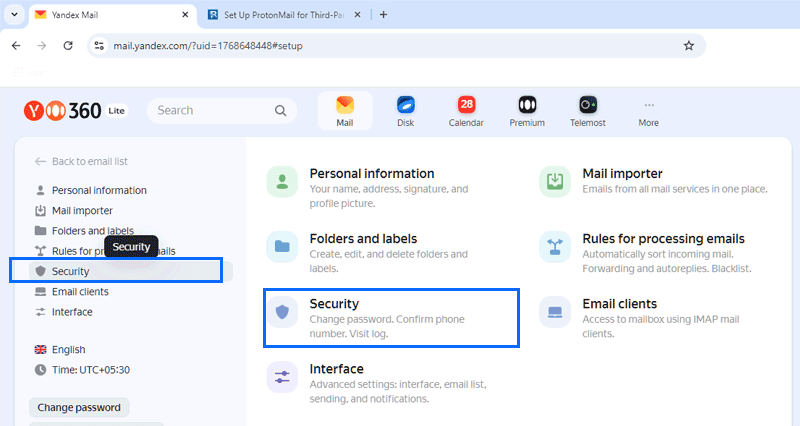
2) In next opened screen, click on the Security tab from avaialble list of options.
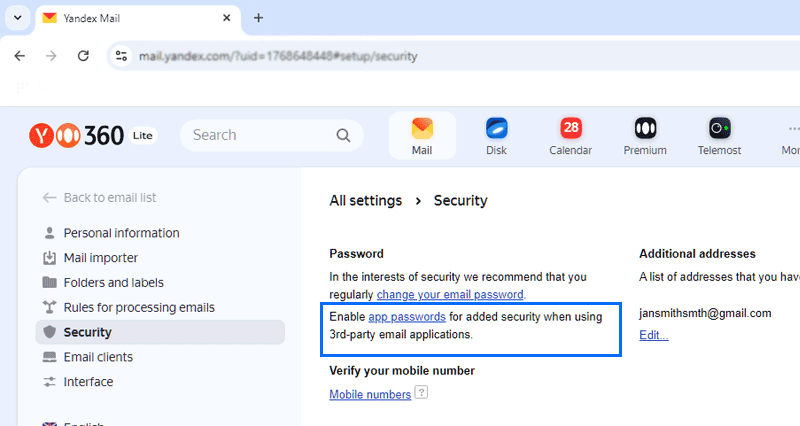
3) From the Password area, click on the link App Passwords and vist to the page - App Password Creation.
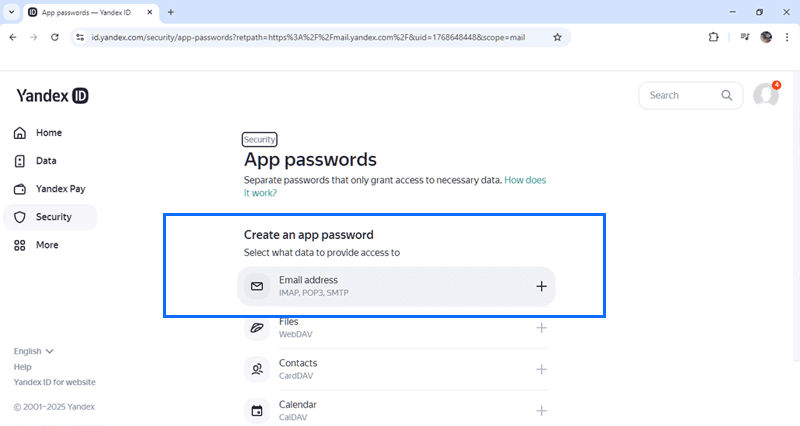
4) Click on Email Address (IMAP, POP3, SMTP) from the options available in the section Create an app password.
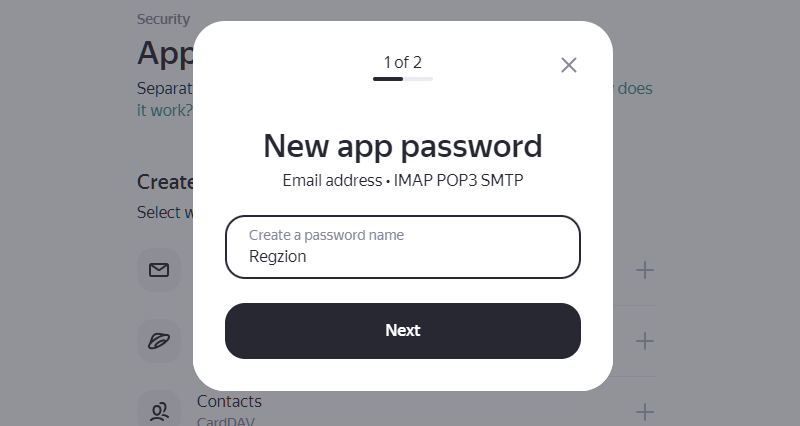
5) Name the app password for easy identification (For example, name it "Regzion", "Outlook", etc) and click on Next.
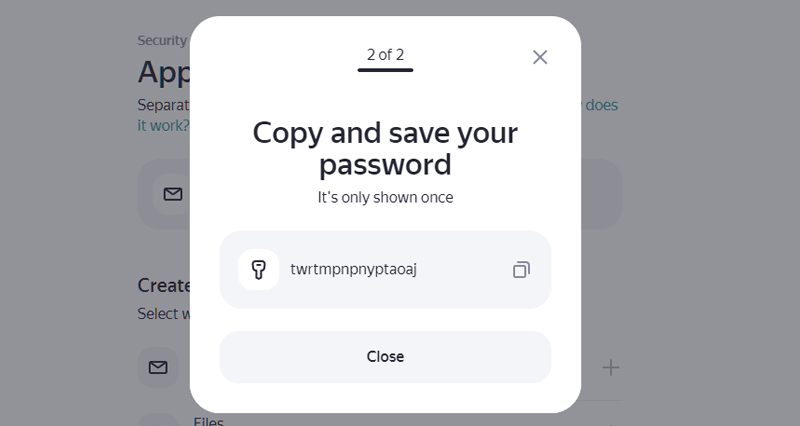
6) Click on " " copy icon and copy generated Yandex Third-Party App Password immediately.
Stage 3: Use App Password for Third-Party App Login
1) Open the third-party app you wish to use with Yandex account.
2) When asked for your Yandex password, enter this app password in place of your regular password.
3) The app will verify the password and establish a secure connection.
4) Once connected, you are ready to use your Yandex account within your third-party app.