How to Set up "Outlook.com" for Third-Party App Login
To log with your Outlook.com account in a third-party app, you'll need to follow a few simple steps. This guide will show you how to create an app password, and set up your Outlook.com account. Let's start!
Step 1 : - Enable Two-Step Verification (2SV)
Step 1:- Log in with your Outlook.com or Hotmail.com account and vist to the link: - "https://account.microsoft.com/security"
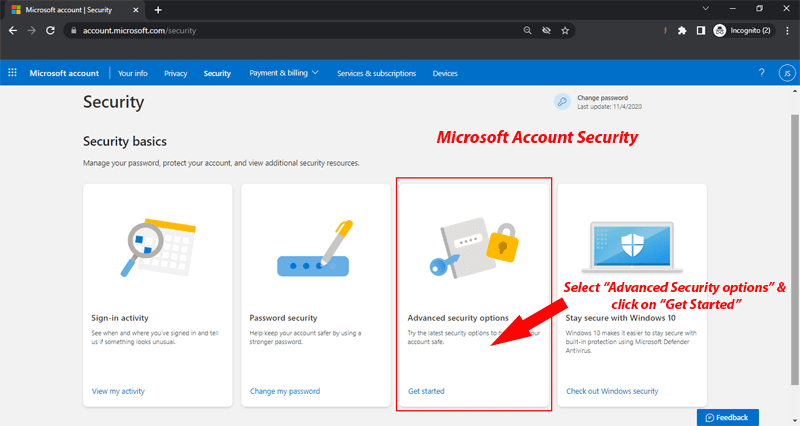
Step 2:- Click on “Get Started” in the “Advanced Security options” section.
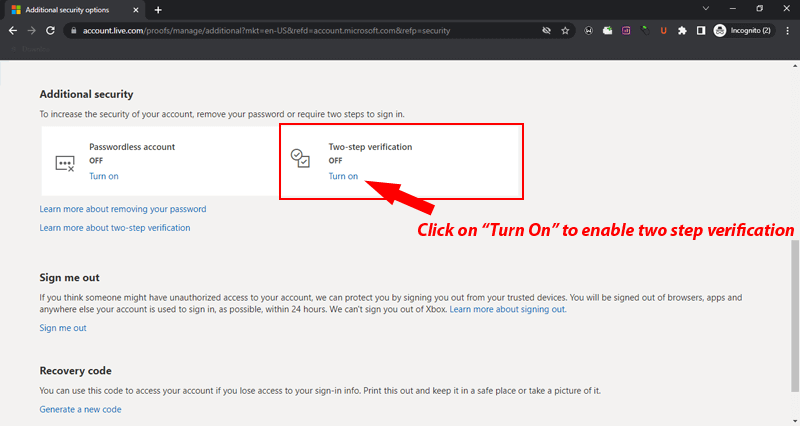
Step 3:- Scroll down to the "Additional Security" section and hit on Two-Step Verification "Turn On" and enable it.
Steps to Generate Outlook.com App Password
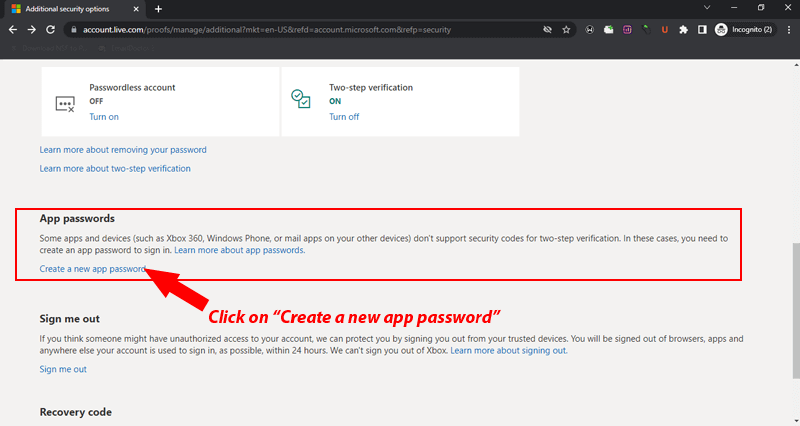
Step 1:- Enable 2 Step Verifictaion by following above mentioned steps, and scroll to App Passwords area.
Step 2:- Click on "Create a new app password" to generate a new password.
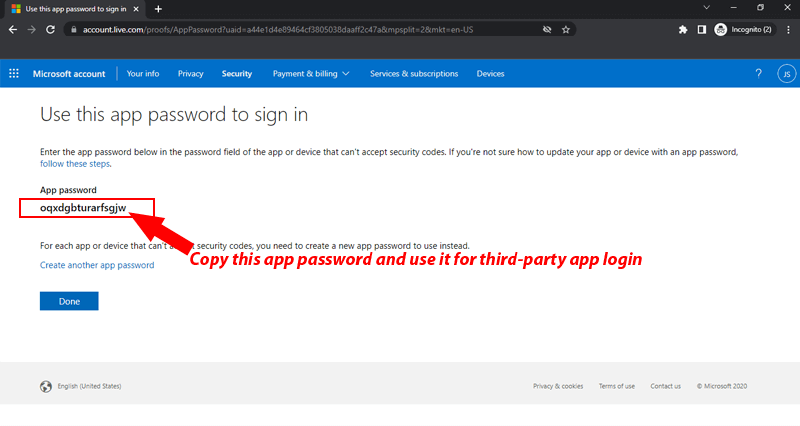
Step 3:- Copy the app password and click "Done" to finish.
Use Generated Outlook.com App Password for Log in to Third-Party App
Step 1:- Open the third-party app where you want to set up your Outlook or Hotmail account.
Step 2:- Enter the app password in the field of password.(not your regular Microsoft account password)
Step 3:- Complete the setup process in the app and login to Outlook.com in third party app.