How to Set Up "AOL Mail" in Third-Party Apps?
To use AOL Mail with third-party applications like Outlook, Thunderbird, or Regzion tools, use correct server settings. Activate two-factor authentication in your account, generate an app-specific password to login via AOL Mail.
AOL Mail Setup Guide
Step 1: Enable 2-Step verification
1 ) Go to AOL Mail and sign in to your account.
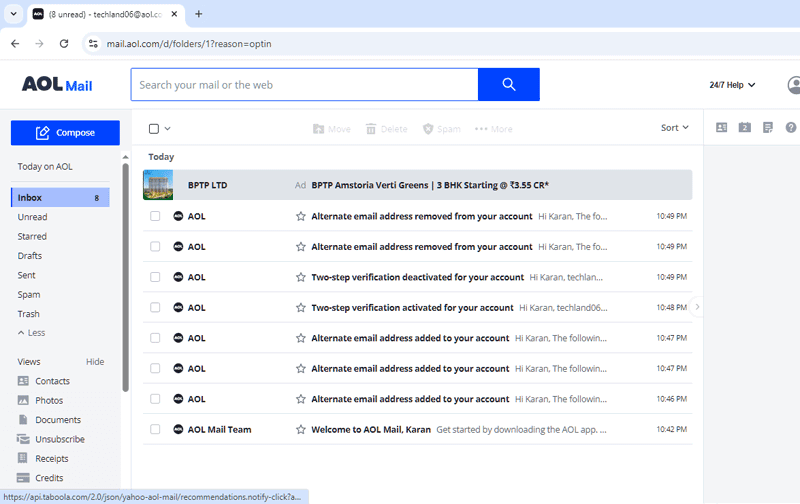
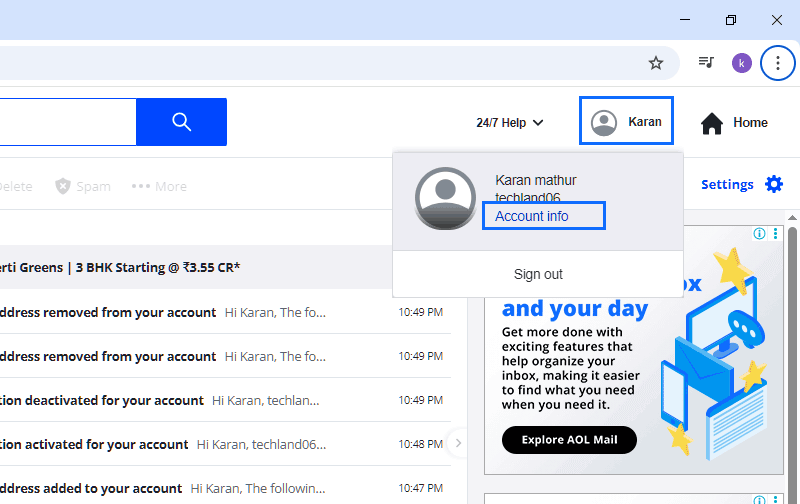
2 ) Hit on your Profile icon/Username and click on Account Info.
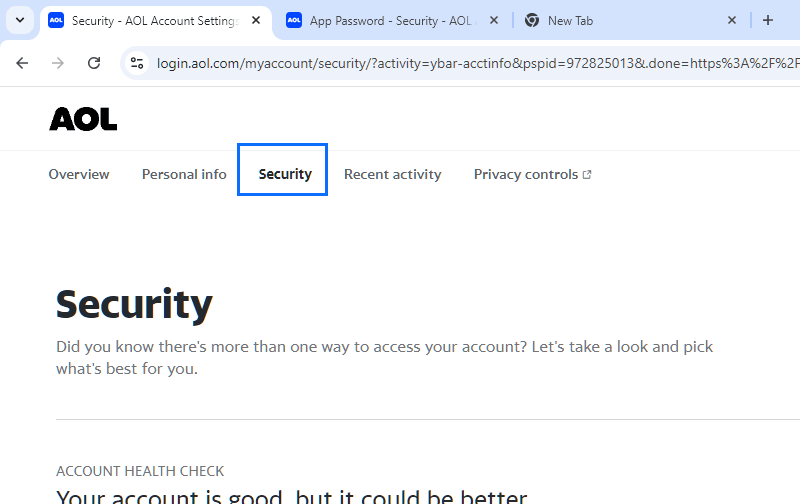
3 ) Navigate to Security tab.
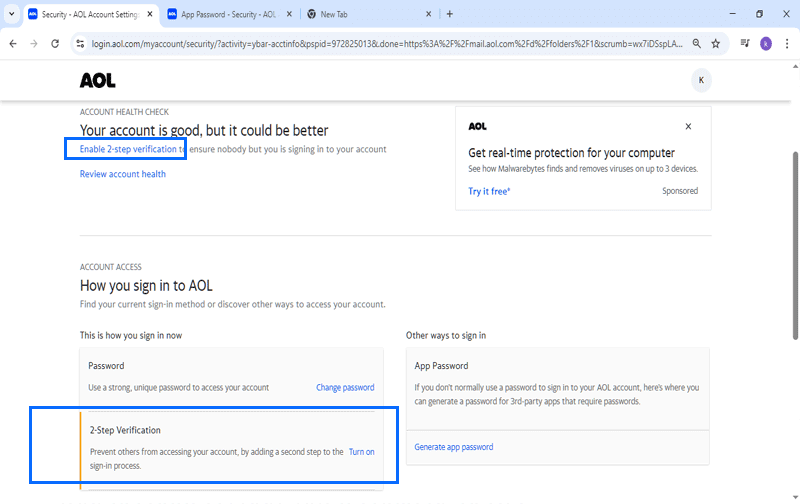
4 ) Select Enable 2-Step Verification or press Turn On button.
5 ) Choose the method for 2-Step verification - Phone Number, Authenticator App, or Security Key
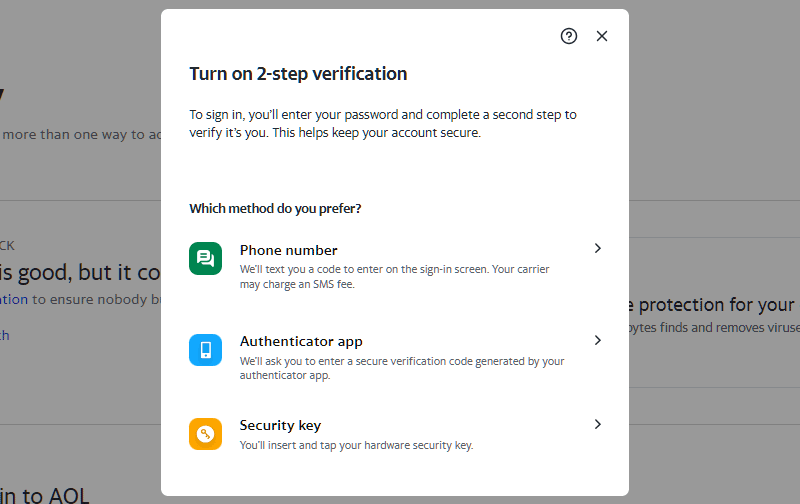
6 ) Apply steps for 2FA verification with your chosen method and turn it on.
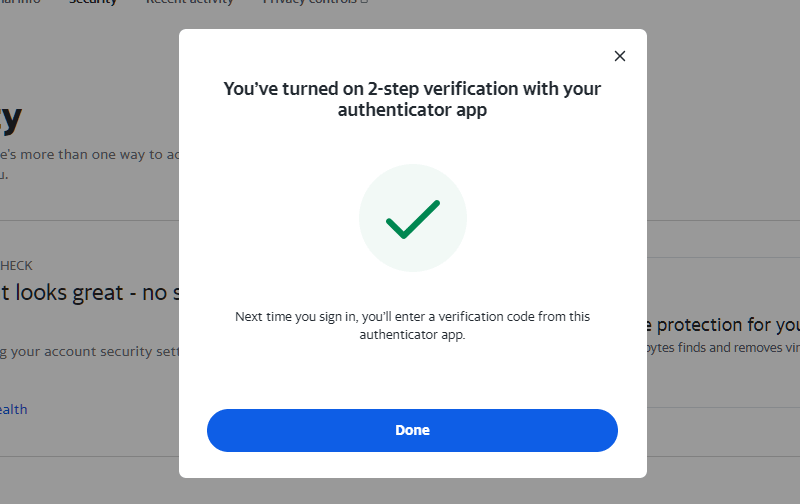
Note: If you have 2-step verification enabled, proceed to Step 2 to generate an app-specific password.
Step 2: Generate App-Specific Password
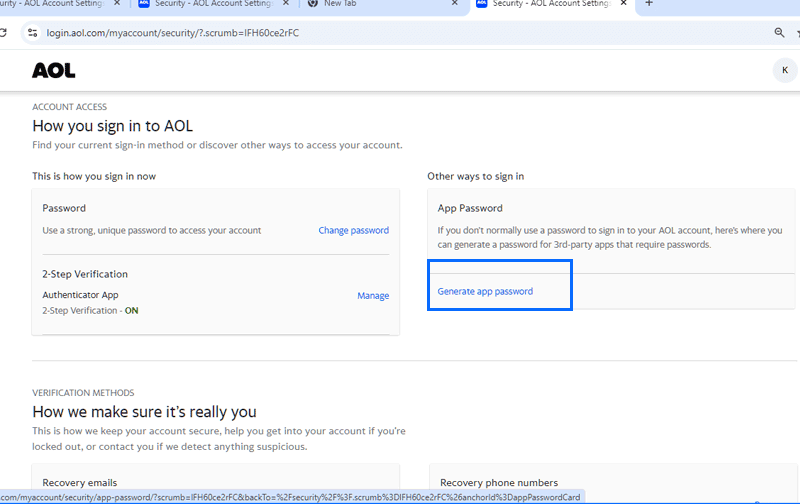
1 ) After enabling 2-Step verification, visit to AOL Account Security Settings.
2 ) Log in and scroll down to App Password section and Click on Generate app password.
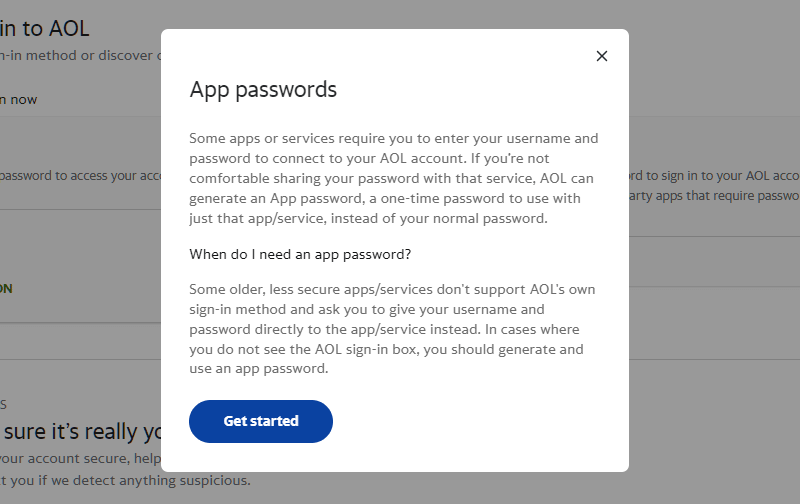
3 ) From the next opened screen, click on Get Started.
4 ) Enter a name (e.g., "Regzion") and click Generate.
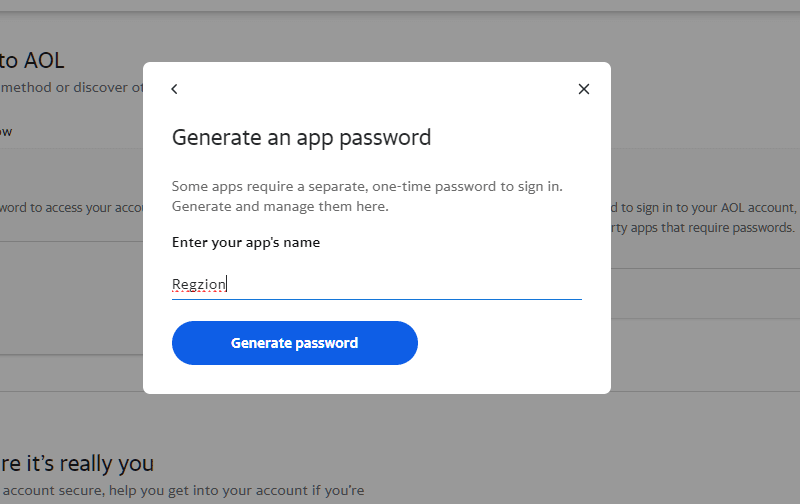
5 ) Get the Password and Copy the password shown and use it in place of your regular AOL password in third-party apps (like- Regzion).
Step 3: Configure AOL Mail in Regzion Software or Other apps
1 ) Open Regzion Software and Provide the following details in thier respective fields:
- IMAP Server: imap.aol.com
- IMAP Port: 993 (SSL)
- SMTP Server: smtp.aol.com
- SMTP Port: 465 (SSL) or 587 (TLS)
- Username: Your full AOL email address
- Password: App-specific password (2FA should be enabled)
3 ) Test the connection and after success, AOL Mail is ready to use in Regzion Software or other third-party tool.